EXCEL, WITH EXCEL! Chapter 1: CONSOLIDATE
Excel, With Excel ! 4 years ago, struggling to add the numbers in 4 cells, I belonged to the group of people who would rather be imprisoned
 Editor
 May 13, 2019
Excel, With Excel !
4 years ago, struggling to add the numbers in 4 cells, I belonged to the group of people who would rather be imprisoned than have to go cross-eyed, looking at the columns and rows in a spreadsheet. I would throw my hands up and tell myself that Excel just wasnt for me!
Thats when CA-Articleship happened to me! Where we meet people singing the praises of Excel all day. We have no choice, but to agree that excel is an incredibly powerful tool to find exactly what we need and get things done in a jiffy --- only if we know how to use it, correctly. All of us have solved various practical problems using Excel. Many a times, after doing something that took us lesser time than it took others, we have felt as if we have ascended the Mount Everest. We have done so much in Excel, that, at the completion of articleship, while filling the details of training received in Form 108, we search for Excel in the Particulars column only to be disappointed, because ironically, Excel doesnt find a place in the list. One thing almost every Excel user has in common is - Not knowing enough. Starting this week, we will be going through some of the tips and tricks for effectively using Excel. Put down from a CAs point of view, I believe, that this series of Excel with Excel' will make your life simpler. Chapter 1: CONSOLIDATE! Excel's Consolidate feature helps in consolidating data in worksheets (located in one workbook or multiple workbooks) into one worksheet. Even though this is predominantly used at the managerial level (say, for aggregating various financial figures from multiple branches), it can come handy to the Chartered Accountants as well. Examples are better than precept and so, let us take an example to understand how it works. Using Consolidate Feature for Opening balance verification: Determining whether the prior periods closing balances have been correctly brought forward to the current period is called Opening balance verification in the common parlance. Some of us have manually verified the balances and some of us have used the vlookup function. Today, we will try it with the Consolidate feature.- Input data: 2 sets of Trial Balances (TB)
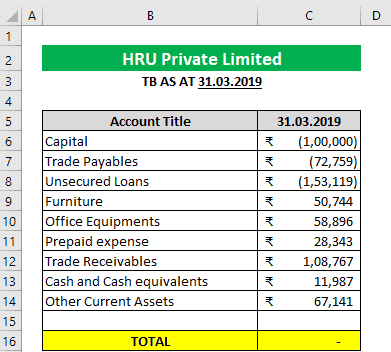
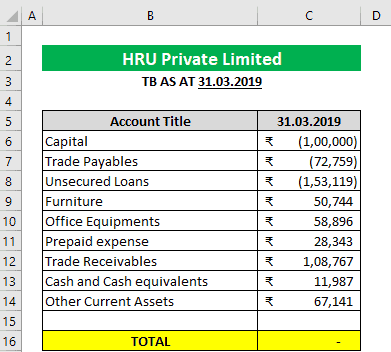
- Closing TB as at 31.03.2019 (Generally, as per the audited financial statements) and
- Opening TB as at 01.04.2019 (As per the books of account)
Points to be noted:

- Procedure:
- Result:
Up Next
Loading suggestions…


Recent Posts



All Posts



Tags
No tags yet.
Recent Posts
All Posts
Tags
No tags yet.