How to Enable Separate B2B and B2C HSN in Tally for GST Return Filing:
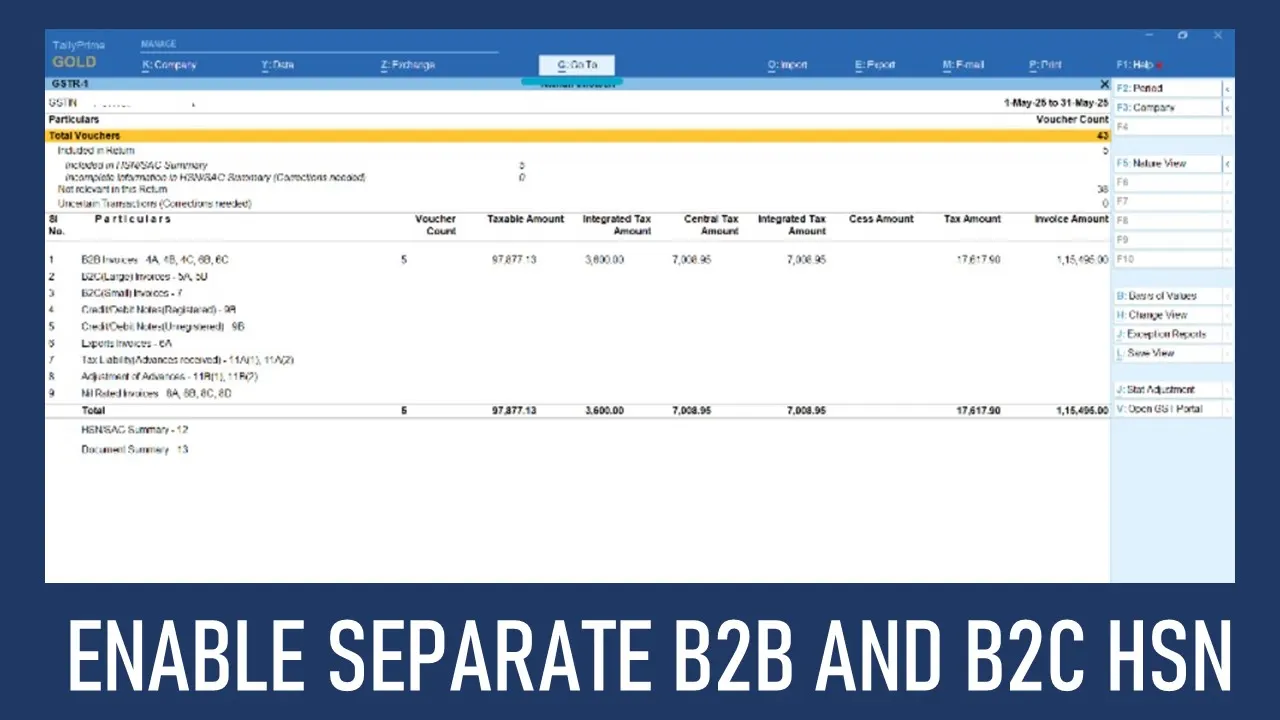
Know how to enable separate B2B and B2C HSN in Tally for GST Return Filing to comply with the new reporting system.
Set Up Separate B2B and B2C HSN in Tally for GSTR-1
 Nidhi
Nidhi Jun 9, 2025
Table of Contents

How to Enable Separate B2B and B2C HSN in Tally for GST Return Filing
The Goods and Services Tax Network (GSTN) has introduced changes on GST Portal where the Harmonized System of Nomenclature (HSN) must be reported separately for Business-to-Business (B2B) transactions and Business-to-Consumer (B2C) transactions in Table 12 of GSTR-1 and GSTR-1A. Therefore, all taxpayers filing GSTR-1 and GSTR-1A must comply with this new update.
Effective from the Tax period of May 2025, this separation would ensure that the tax filings are more accurate and the businesses follow standardised reporting methods. Businesses must update their accounting software, to endure this change. Since many businesses are using Tally, to comply with the new reporting format, we are sharing how to enable separate B2B and B2C HSN in Tally for GST return filing.
Steps to Enable Separate B2B and B2C HSN in Tally
Step 1: Download GST Offline Tool
- Visit the official website at https://www.gst.gov.in/
- Go to 'Download,' then click on 'Offline Tools' and navigate to 'Return Offline Tools'
- Click 'Download'
- When it is prompted, click Proceed
- The file "gst_offline_tool.zip" will be saved in your downloads.
Step 2: Install in Tally
- Locate your Tally installation folder.
- Copy "gst_offline_tool.zip" from your Downloads folder.
- Paste it into your Tally installation.
- Go To the Gateway of Tally
- Click on Display More Reports
- Click on Statutory Reports
- Click on GST Reports
- Click on GSTR-1
- Press 11 and Enable 'Set/Alter Company GST Rate and Other Details'
- Click on Ctrl + I for 'More Details' on the right side.
- Click on 'Show More' on the top side.
- Select 'Separate B2B & B2C HSN Summary applicable from'
- Enter the applicable date as 01/05/2025.
About Author


Nidhi
Content Writer
Nidhi is a skilled content writer specializing in personal finance. She creates clear, engaging articles on mutual funds, investments, insurance, and wealth-building strategies. With a passion for simplifying complex financial topics, Nidhi helps readers make informed money decisions with confidence. She can be reached at [email protected]
Nidhi is a skilled content writer specializing in personal finance. She creates clear, engaging articles on mutual funds, investments, insurance, and wealth-building strategies. With a passion for simplifying complex financial topics, Nidhi helps readers make informed money decisions with confidence. She can be reached at [email protected]
 Studycafe
 New Delhi, Delhi, India
 1832
1832My Recent Articles
- Karnataka High Court Gives Another Chance in GST Matter Due to Lack of Hearing
- Delay Should Be Condoned if Explanation is Unrefuted: ITAT
- Non-Service of Income Tax Notice, Ill health of taxpayer, ITAT condones Appeal filing delay
- Books of Accounts Cannot be Rejected Without Any Specific Defect: ITAT Kolkata
- Karnataka High Court Sends ITC Matter Back to GST Authorities for Reconsideration
Up Next
Loading suggestions…


Recent Posts



All Posts



Tags
No tags yet.
Recent Posts
All Posts
Tags
No tags yet.