Annual Information Statement and How to download it from New Income Tax Portal

Annual Information Statement and ways to download it from New Income Tax Portal Annual Information Statement and ways to download it from New Income Tax Portal
 Sushmita Goswami
 Nov 19, 2021
Table of Contents

Annual Information Statement and ways to download it from New Income Tax Portal
The Annual Information Statement (AIS), which was just established, is a tool that informs taxpayers on what the IRS knows about them. The AIS is a complete statement that covers all of your financial transactions over the course of a financial year (FY), i.e., it comprises the information required by the Income-tax Act of 1961.
Salary, dividends, interest from savings accounts, recurring deposits, sale and purchase of equity shares, bonds, mutual funds, and other forms of income are all included in the AIS. TDS, TCS, and any tax demand or refund details are also included in the statement.
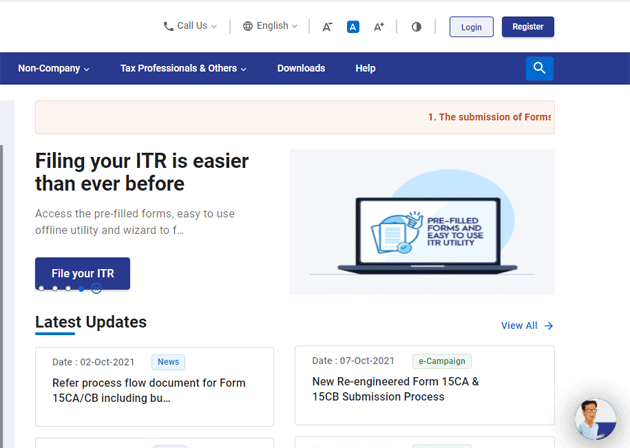 Step 2: Select 'Annual Information Statement (AIS)' from the 'Services' option. On your screen, a pop-up will display. Select 'Proceed' from the drop-down menu. You will be sent to a different website.
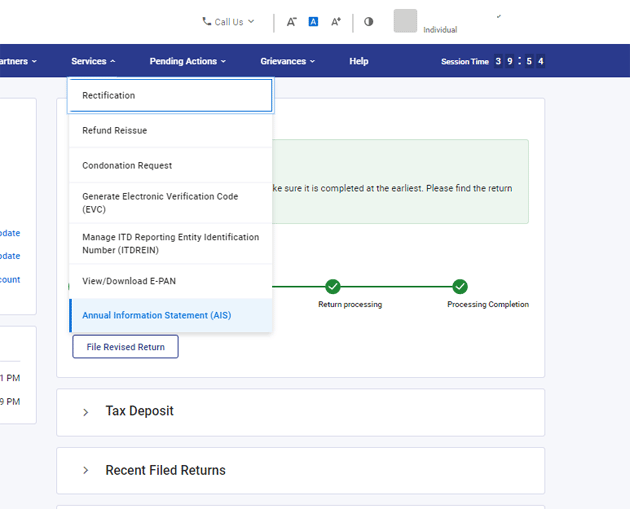 Step 3: Select 'AIS' from the web page tab that appears.
Step 4: Choose one of the two options: TIS (Taxpayer Information Summary) or AIS (Annual Information Statement) (AIS). The financial year for which AIS is being downloaded, as well as your PAN and name, will be displayed.
Step 3: Select 'AIS' from the web page tab that appears.
Step 4: Choose one of the two options: TIS (Taxpayer Information Summary) or AIS (Annual Information Statement) (AIS). The financial year for which AIS is being downloaded, as well as your PAN and name, will be displayed.
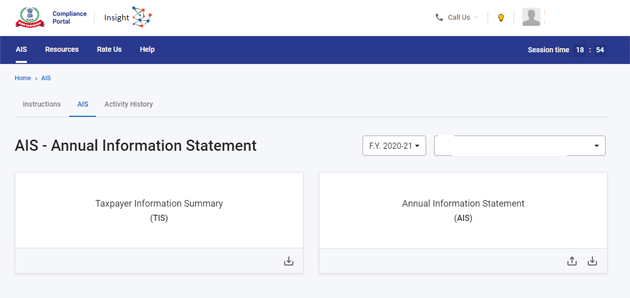 Step 5: On the AIS box, select the download Arrow. A pop-up window will appear, prompting you to choose an AIS download format. The statement is available in PDF and JSON formats for download.
A password is required to open the PDF. The password to open the PDF you've downloaded is a combination of your PAN and your date of birth. For example, if your PAN is AAAAA000A and your birthday is January 1, 1991, your PDF password will be AAAAA0000A01011991.
Step 5: On the AIS box, select the download Arrow. A pop-up window will appear, prompting you to choose an AIS download format. The statement is available in PDF and JSON formats for download.
A password is required to open the PDF. The password to open the PDF you've downloaded is a combination of your PAN and your date of birth. For example, if your PAN is AAAAA000A and your birthday is January 1, 1991, your PDF password will be AAAAA0000A01011991.
Steps to download AIS from the e-filing website.
Step 1: Go to www.incometax.gov.in and log in to your account on the government's e-filing portal.
Step 2: Select 'Annual Information Statement (AIS)' from the 'Services' option. On your screen, a pop-up will display. Select 'Proceed' from the drop-down menu. You will be sent to a different website.
Step 3: Select 'AIS' from the web page tab that appears.
Step 4: Choose one of the two options: TIS (Taxpayer Information Summary) or AIS (Annual Information Statement) (AIS). The financial year for which AIS is being downloaded, as well as your PAN and name, will be displayed.
Step 5: On the AIS box, select the download Arrow. A pop-up window will appear, prompting you to choose an AIS download format. The statement is available in PDF and JSON formats for download.
A password is required to open the PDF. The password to open the PDF you've downloaded is a combination of your PAN and your date of birth. For example, if your PAN is AAAAA000A and your birthday is January 1, 1991, your PDF password will be AAAAA0000A01011991.
Information in AIS
Part A and Part B are the two portions of AIS. Part A provides general information such as the taxpayer's PAN, masked Aadhaar number, name, date of birth, and so on. TDS, TCS, Specified financial transactions, tax payment, tax demand and refund, and other information are all included in Part B.Error Check
The income tax administration has asked taxpayers to review the information accessible in the AIS in a press statement dated November 1, 2021. Taxpayers should notify the income tax department if there is a discrepancy in the information. If the tax department is not notified of the discrepancy, it is possible that the information in the AIS is correct, and the income tax department may ask you to explain the discrepancy between your income tax return and the information in the AIS. "A facility has been provided for taxpayers to send online feedback if they believe the information is wrong, relates to another person/year, or is duplicate," the press statement stated.About Author


Sushmita Goswami
Content Manager
Sushmita Goswami is a content writer with 2+ years of experience in Finance, Recruitment, Education and career Related Content. She is a Graduate from Delhi University in Journalism and Mass Communication
Sushmita Goswami is a content writer with 2+ years of experience in Finance, Recruitment, Education and career Related Content. She is a Graduate from Delhi University in Journalism and Mass Communication
 Studycafe
  New Delhi , Delhi, India
 886
886My Recent Articles
- What to Consider When Choosing an Online Trading Platform?
- Post Office Franchise Scheme: Take Post Office Franchise at Rs 5000 and Earn Commission upto 20%; Check Details Here
- IAN invests INR 4.5 crore in Fintech NBFC Indium Finance
- UPI a Digital Public Good, No Charges in Consideration: Finance Ministry
- ITR Filing Penalty: Check Taxpayers Exempt from Paying a Late Fee even Missing the Deadline
Up Next
Loading suggestions…


Recent Posts


All Posts



Recent Posts
All Posts