GST Return Filing: How to Manage IMS Inward Supplies in TallyPrime:
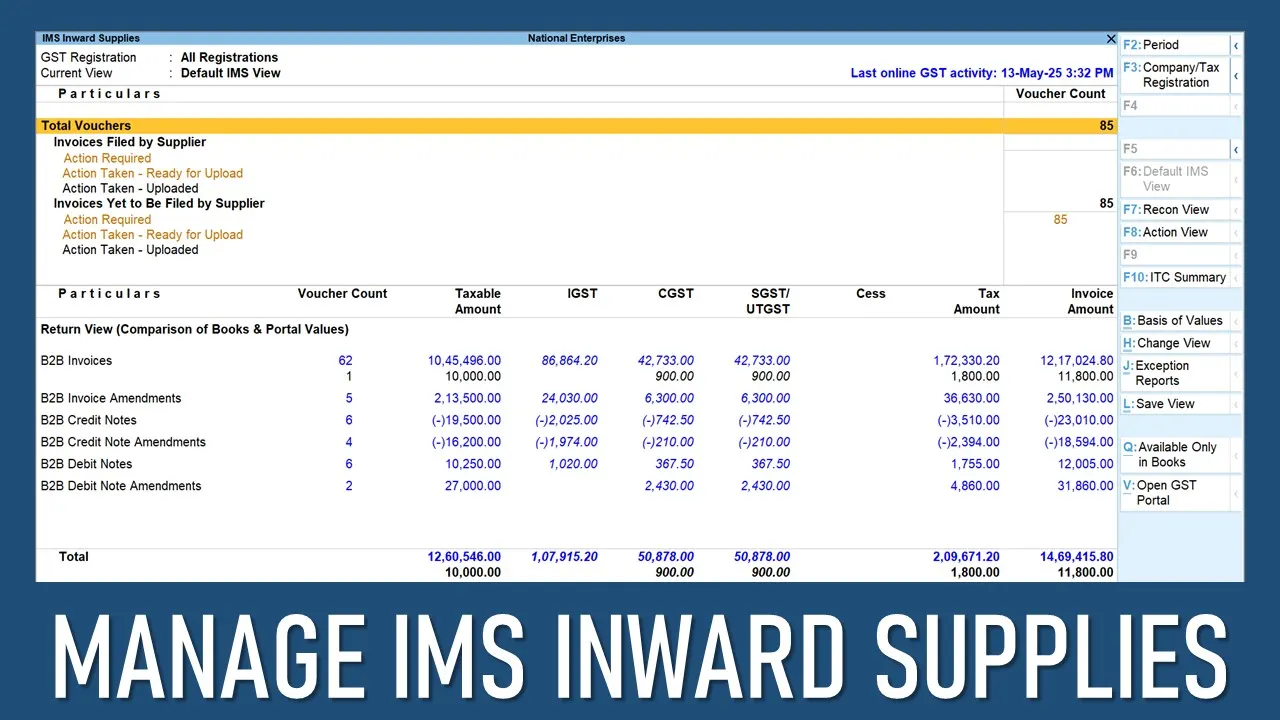
IMS allows you to download and manage the invoices your suppliers have submitted to the GST portal, right from within TallyPrime
How To Use IMS In TallyPrime: Accept, Reject, or Mark Invoices
 Nidhi
Nidhi Jun 17, 2025
Table of Contents

GST Return Filing: How to Manage IMS Inward Supplies in TallyPrime
Handling purchase invoices and claiming the correct Input Tax Credit (ITC) can be confusing and difficult, especially when suppliers delay or make mistakes in their GST filings, which causes discrepancies in your GSTR-2B and leads to wrong ITC claims. TallyPrime, with its Invoice Management System (IMS), makes this easier. It allows you to download and manage the invoices your suppliers have submitted to the GST portal, right from within TallyPrime. You can accept, reject or mark invoices as pending on the dashboard without having to navigate somewhere else. When you accept an invoice, it is counted as GSTR-2B ITC, and the rejected ones go to the ITC Rejected section of GSTR-2B. The pending ones stay in the system for review later. If no action is taken, invoices are automatically moved to GSTR-2B.How to View IMS Inward Invoices
After you download invoices using the Invoice Management System (IMS), they display in the IMS Inward Supplies report. The top of the report shows the current GST registration. If you handle more than one GST number, you can set the report to show data for each one as needed. The report gives you three views: Default View, Reconciliation View, and Action View. You can also filter the report using the Basis of Values, such as Filing Status, Reconciliation Status, and Action Status. Let us understand how you can view IMS inward invoices in Tally. 1. Click on Alt+G (Go To) and then type or choose Invoice Management System and click Enter. On your screen, you will see the IMS Inward Supplies report.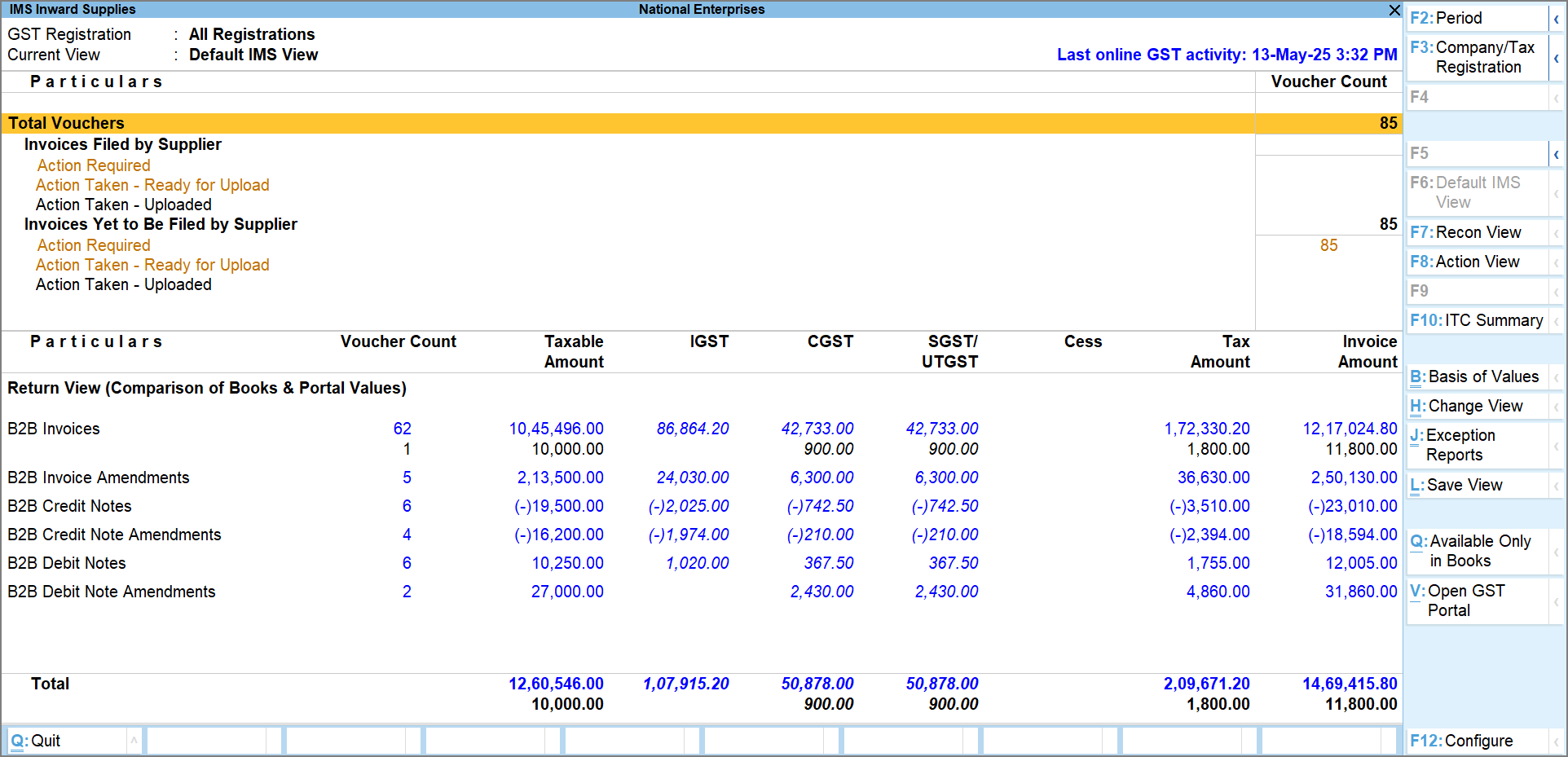 2. The report opens in IMS Default view by default, but you can change the views. If you want to switch to IMS Reconciliation View, press F7 and for IMS Action View, press F8. Each view shows the filing status, such as:
- Invoices Filed by Supplier: shows the filed invoices in GSTR-1. This affects the current month's ITC.
- Invoices Yet to Be Filed: It shows the uploaded invoices on the GST portal, but not filed. These invoices can be reviewed and acted on when suitable.

IMS Default View
Here you can view your invoices on the basis of their action and upload status:- Action Required: Invoices have been downloaded, but no action has been taken on them.
- Ready for Upload: invoices on which you have taken action, but they have not been uploaded yet on the GST portal.
- Uploaded: Invoices on which you have taken action have also been uploaded to the GST portal.
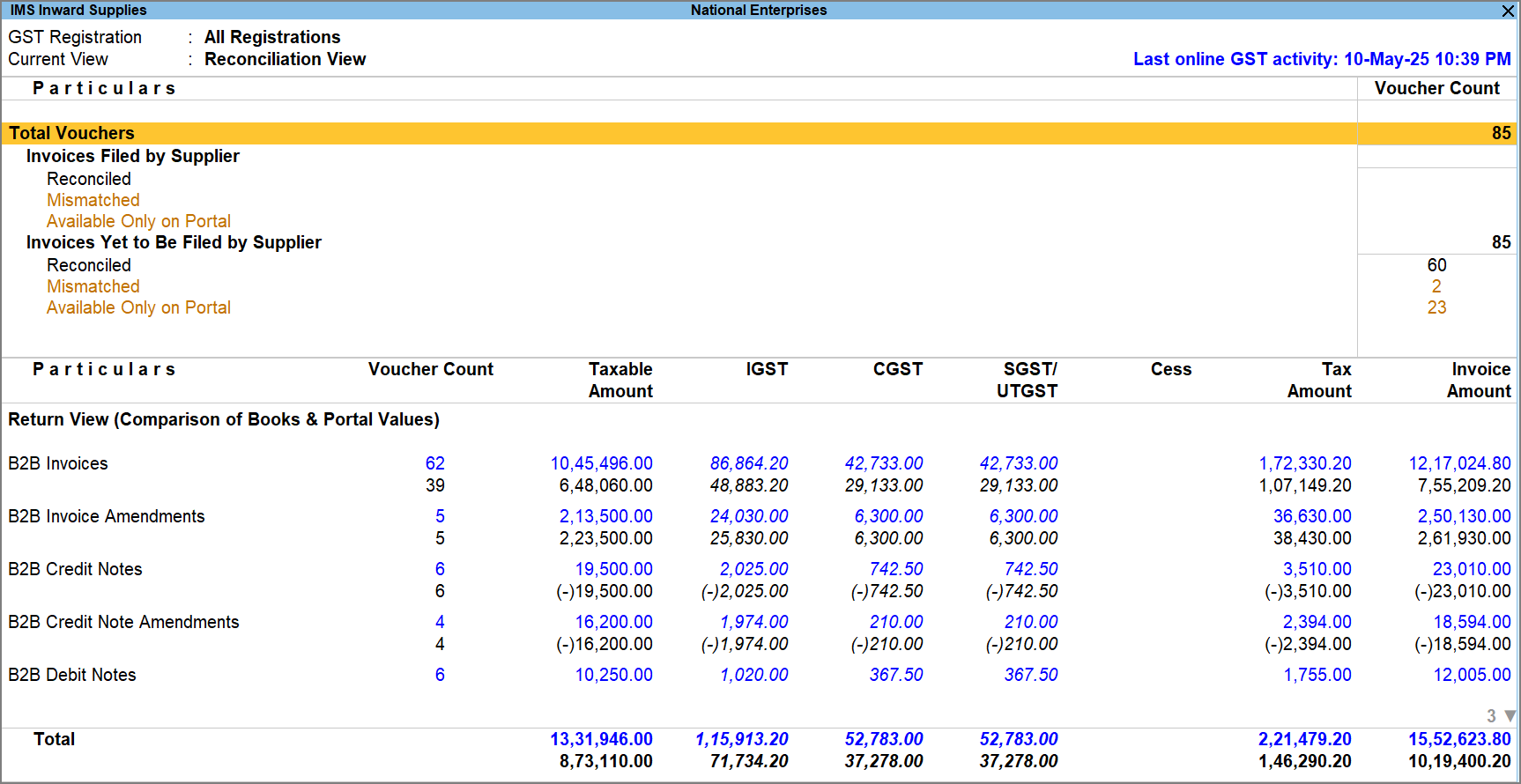
Reconciliation View
In the Reconciliation View, you can check invoices based on their matching status.- Reconciled: Invoices that fully matched your records.
- Mismatched: Invoices in which differences were found.
- Available Only on Portal: Invoices seen on the portal but not recorded in your books.
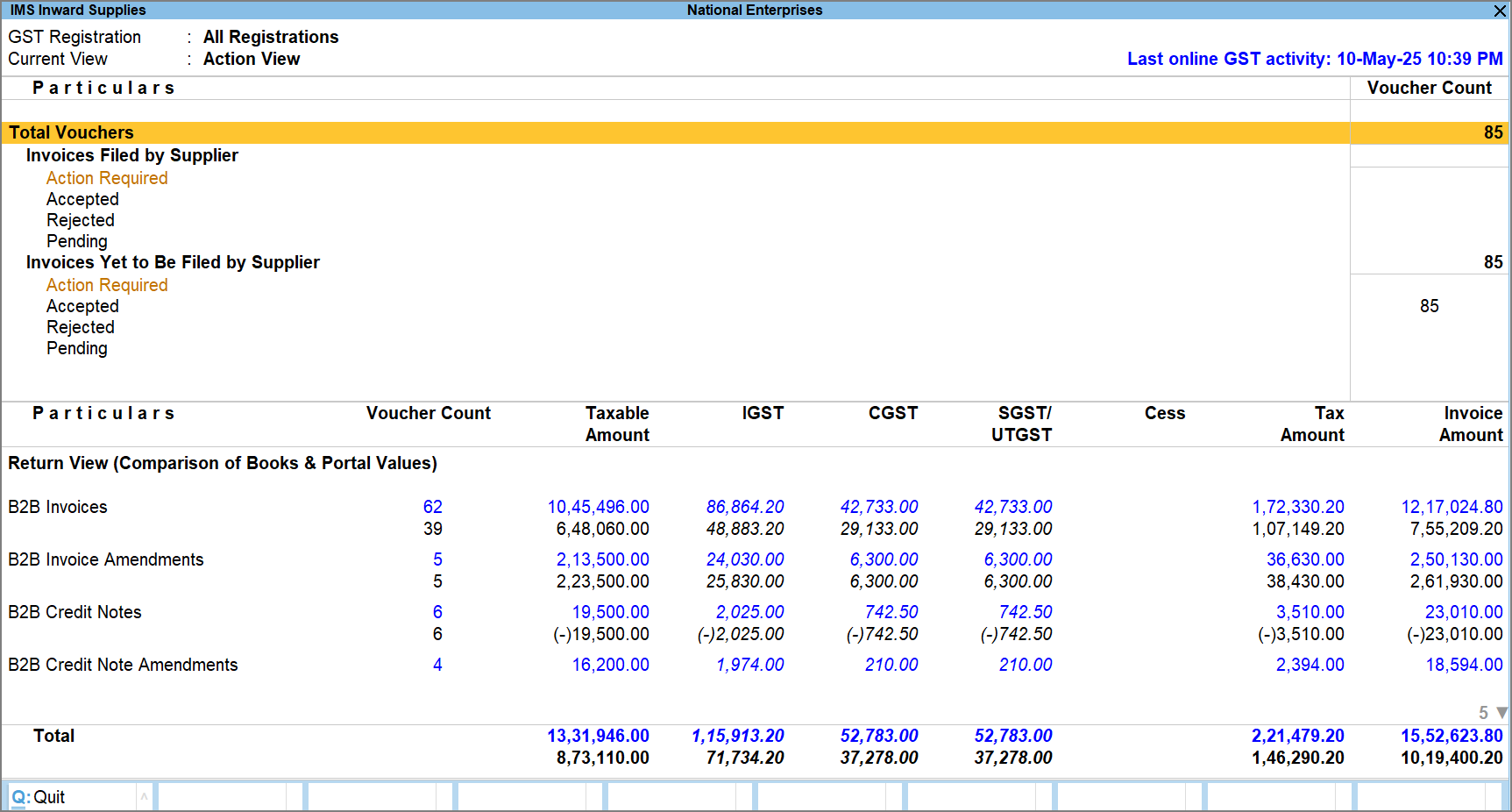
IMS Action View
Here you can check invoices based on the action you have taken:- Action Required: Invoices for which no action has been taken yet.
- Accepted: Invoices that you have approved these invoices.
- Rejected: Invoices that you have rejected.
- Pending: Invoices that have been set aside for review or action later.
Set Invoice Actions and Manage ITC Easily With IMS
After downloading the invoices, you can set the IMS Action status (accept, reject, or pending) from the IMS Inward Supplies report. ITC will update in GSTR-2B based on your action. You can also choose the GST return date for pending invoices and exclude rejected ones from GSTR-3B. Additionally, add remarks to explain your action if needed. 1. Click on Alt+G (Go To) and select Invoice Management System, and press Enter. 2. Go down to the required section. 3. Here you will see the IMS Inward Voucher Register screen. You can view the vouchers based on the chosen section.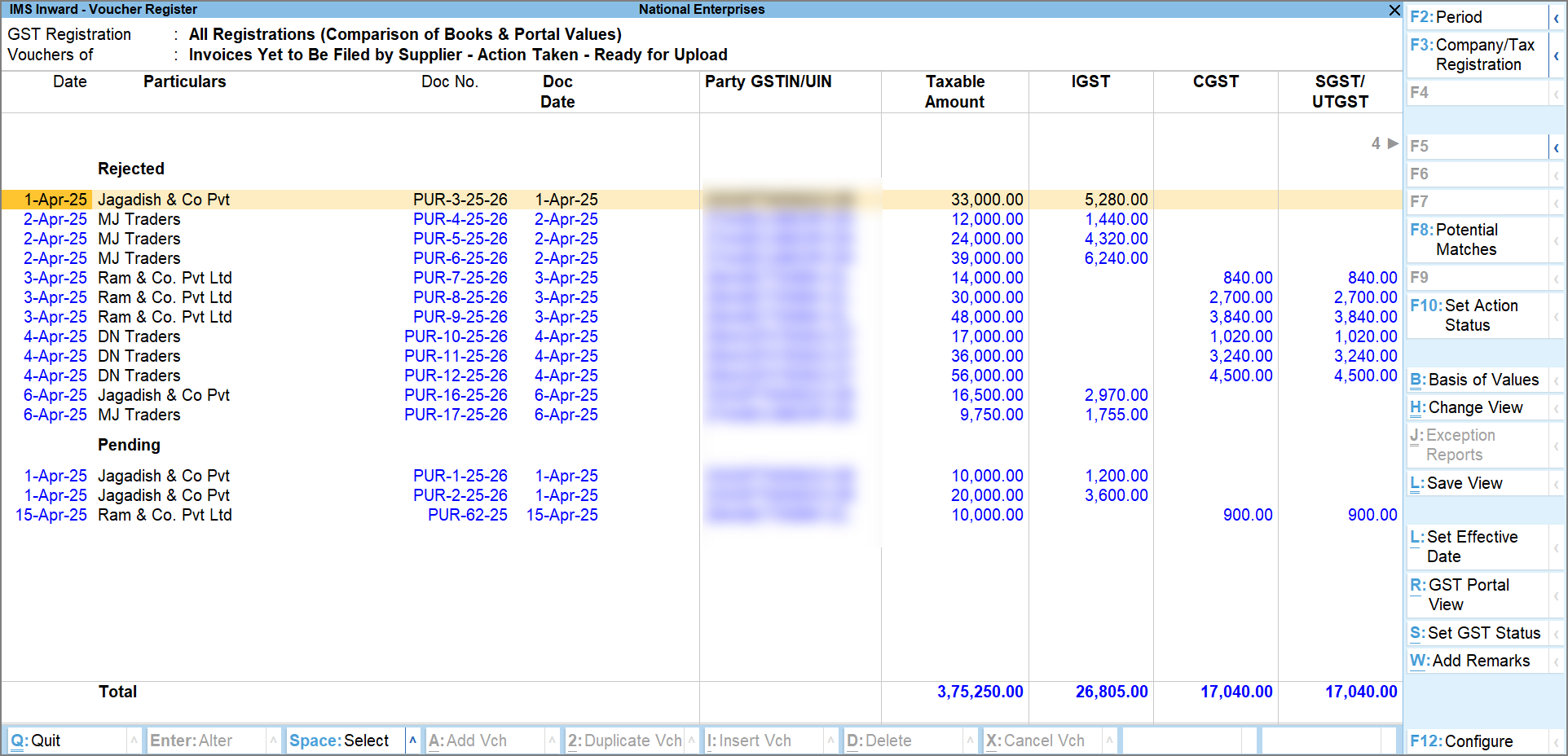 4. Select one or more invoices using the Spacebar, then press F10 to open the Set Action Status screen.
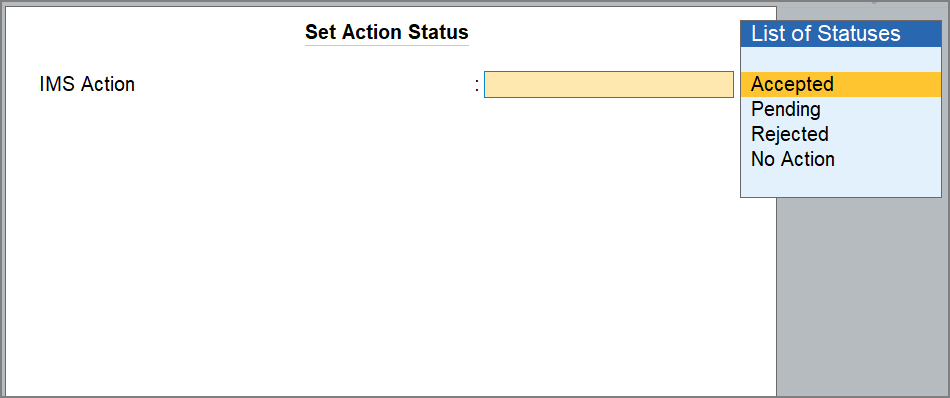 5. Choose the right action from the list:
- Accept: Includes the invoice in GSTR-2B for ITC.
- Reject: Excludes it from GSTR-2B and shows in the ITC Rejected section. It will be shown in the GSTR-3B section.
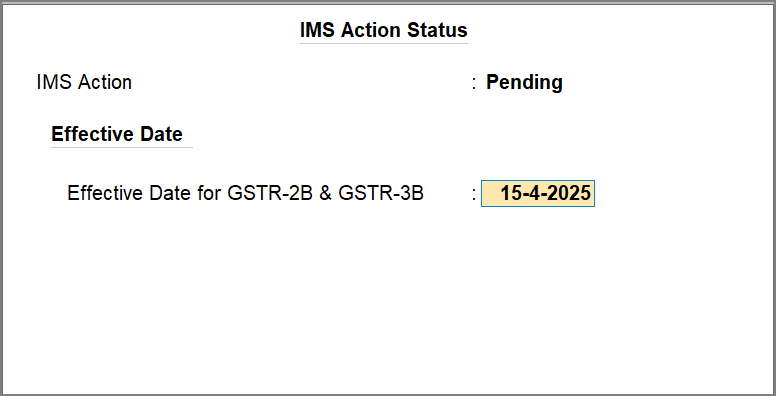
- Pending: Keeps the invoice on hold for later review. You can set the effective date for GSTR-2B and GSTR-3B.
- No Action: These invoices stay for a while but will be auto-accepted when GSTR-2B is generated.
Modifying GSTR Effective Date
- When marking an invoice as Pending, you can enter the Effective Date for GSTR-2B and GSTR-3B.
- To set different dates for each, press F12 (Configure) and turn on Set separate Effective Dates for GSTR-2B and GSTR-3B.
About Author


Nidhi
Content Writer
Nidhi is a skilled content writer specializing in personal finance. She creates clear, engaging articles on mutual funds, investments, insurance, and wealth-building strategies. With a passion for simplifying complex financial topics, Nidhi helps readers make informed money decisions with confidence. She can be reached at [email protected]
Nidhi is a skilled content writer specializing in personal finance. She creates clear, engaging articles on mutual funds, investments, insurance, and wealth-building strategies. With a passion for simplifying complex financial topics, Nidhi helps readers make informed money decisions with confidence. She can be reached at [email protected]
 Studycafe
 New Delhi, Delhi, India
 1832
1832My Recent Articles
- Karnataka High Court Gives Another Chance in GST Matter Due to Lack of Hearing
- Delay Should Be Condoned if Explanation is Unrefuted: ITAT
- Non-Service of Income Tax Notice, Ill health of taxpayer, ITAT condones Appeal filing delay
- Books of Accounts Cannot be Rejected Without Any Specific Defect: ITAT Kolkata
- Karnataka High Court Sends ITC Matter Back to GST Authorities for Reconsideration
Up Next
Loading suggestions…


Recent Posts



All Posts



Tags
Recent Posts
All Posts