STEPS TO LOGIN AND FILE REPLY FOR MCA SHOW CAUSE NOTICE
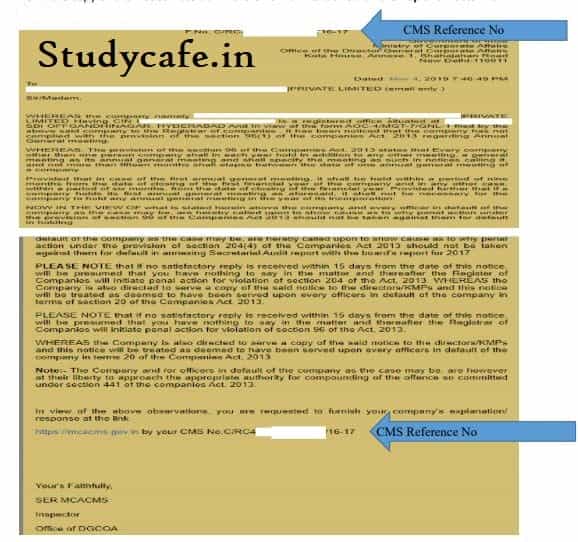
STEPS TO LOGIN AND FILE REPLY FOR MCA SHOW CAUSE NOTICE Step 1 Form the copy of the Notice note down the CMS No. mentioned on the Top and Bo
 Pratibha Goyal
 Nov 11, 2019
STEPS TO LOGIN AND FILE REPLY FOR MCA SHOW CAUSE NOTICE
Step 1
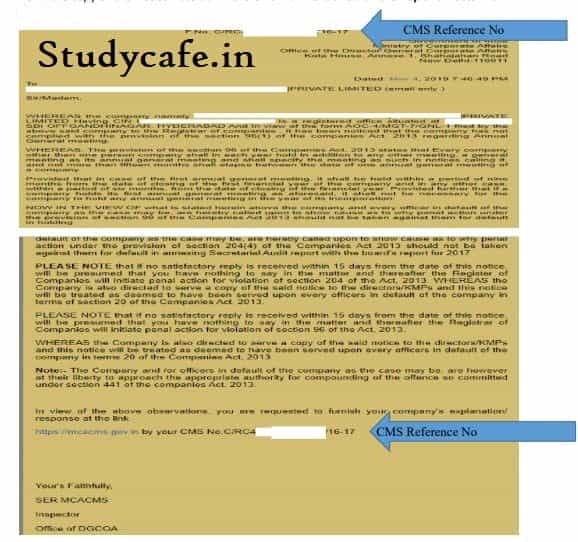
Form the copy of the Notice note down the CMS No. mentioned on the Top and Bottom of the Show Cause Notice.
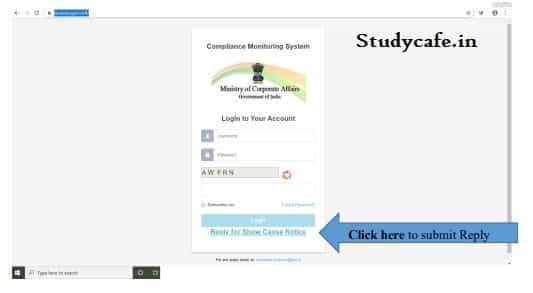
 Step 2.
Open https://mcacms.gov.in/#/ on a browser
Step 3.
Click on Reply for Show Cause Notice
Step 2.
Open https://mcacms.gov.in/#/ on a browser
Step 3.
Click on Reply for Show Cause Notice
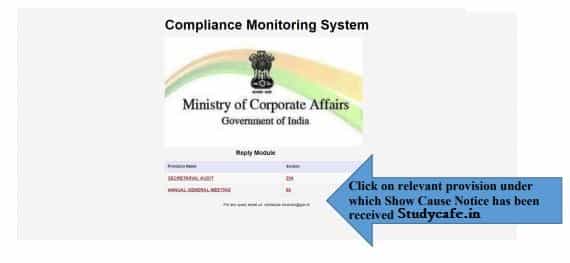
 Step 4
A new window shall open detailing the Section under which the Show Cause Notice has been issued.
Click on provision under which the reply to the show cause notice is to be submitted
Step 4
A new window shall open detailing the Section under which the Show Cause Notice has been issued.
Click on provision under which the reply to the show cause notice is to be submitted
 Step 5
A new window shall open whereby the person is required to fill in the CMS Reference No. as noted in the first step and click Search.
Step 5
A new window shall open whereby the person is required to fill in the CMS Reference No. as noted in the first step and click Search.
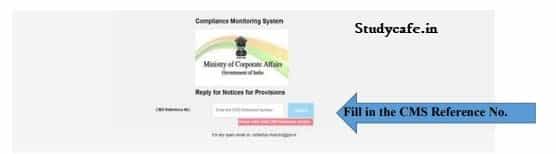 The System will validate the reference number.
 Step 6
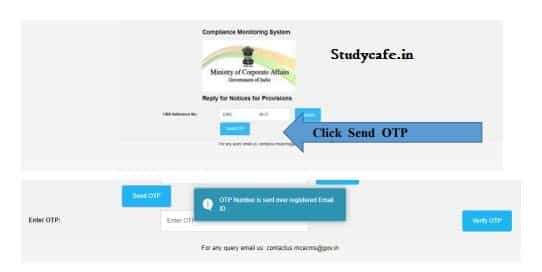
Once the CMS Reference No. is validated the person is required to click Send OTP Tab. OTP shall be sent on the Email Id on which the Show Cause Notice has been Received.
Step 6
Once the CMS Reference No. is validated the person is required to click Send OTP Tab. OTP shall be sent on the Email Id on which the Show Cause Notice has been Received.
 Step 7
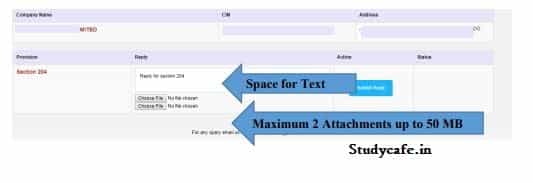
Once the OTP is verified the user will be directed to new window where the person can write text up to 480 words.
The person can also submit reply as an attachment. Maximum Number of Attachments allowed is 2 (two) attachment in pdf file only.
Total size of the attachments shall not exceed 50 MB.
Step 7
Once the OTP is verified the user will be directed to new window where the person can write text up to 480 words.
The person can also submit reply as an attachment. Maximum Number of Attachments allowed is 2 (two) attachment in pdf file only.
Total size of the attachments shall not exceed 50 MB.
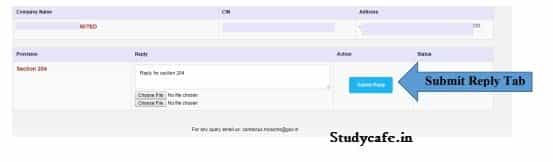
 Once the Reply is complete the user can click the Submit Reply tab
 STEP 8.
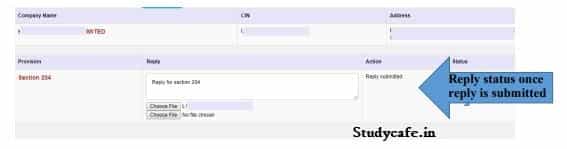
The System will show a Confirmation message of the reply submission and the action tab will show the Reply Status
STEP 8.
The System will show a Confirmation message of the reply submission and the action tab will show the Reply Status
 Click Here to Buy CA Final Pendrive Classes at Discounted Rate
Note
• Reply can be submitted once.
• Reply once submitted cannot be altered.
Click Here to Buy CA Final Pendrive Classes at Discounted Rate
Note
• Reply can be submitted once.
• Reply once submitted cannot be altered.
Step 2.
Open https://mcacms.gov.in/#/ on a browser
Step 3.
Click on Reply for Show Cause Notice
Step 4
A new window shall open detailing the Section under which the Show Cause Notice has been issued.
Click on provision under which the reply to the show cause notice is to be submitted
Step 5
A new window shall open whereby the person is required to fill in the CMS Reference No. as noted in the first step and click Search.
The System will validate the reference number.
Step 6
Once the CMS Reference No. is validated the person is required to click Send OTP Tab. OTP shall be sent on the Email Id on which the Show Cause Notice has been Received.
Step 7
Once the OTP is verified the user will be directed to new window where the person can write text up to 480 words.
The person can also submit reply as an attachment. Maximum Number of Attachments allowed is 2 (two) attachment in pdf file only.
Total size of the attachments shall not exceed 50 MB.
Once the Reply is complete the user can click the Submit Reply tab
STEP 8.
The System will show a Confirmation message of the reply submission and the action tab will show the Reply Status
Click Here to Buy CA Final Pendrive Classes at Discounted Rate
Note
• Reply can be submitted once.
• Reply once submitted cannot be altered.About Author


Pratibha Goyal
Admin
This Account belongs to Admistrator of Studycafe.
This Account belongs to Admistrator of Studycafe.
 Studycafe
 Delhi, Delhi, India
 1080
1080My Recent Articles
- Chartered Accountants Association Embraces Income Tax Faceless Proceedings
- CBDT condones delay in filing form 10IC for AY 20-21: Know upto when to file the form to take concessional tax benefit
- ICAI Announced date of Live Coaching Classes for CA Intermediate Nov 2022 Exam
- ICAI Announced Registration Date for Online Home-Based Practical Training Assessment
- ICAI Released Mock Test Papers Series for May 2022 CA Exam
Up Next
Loading suggestions…


Recent Posts


All Posts



Recent Posts
All Posts