bsseethapathirao | May 18, 2019 |

Practical Issues while filing GSTR-9A : Procedure to File GSTR-9A

Dear Colleagues, good morning to all of you. I have received messages from our friends about to prepare notes on GSTR-9, GSTR-9A and GSTR-9C after modified to the forms. So, I am preparing notes on the above subject from today onwards on daily basis with practical issues to better understanding.
The Government of India , as per section 44 read with proviso Rule 80(1) of CGST Act and Rules , Every taxable person (Who are choose to pay tax under Composition under Sec.10 of CGST Act, 2017) shall furnish the annual return in FORM GSTR- 9A . For the Financial Year 2017-18 to be filled on or before 30th June, 2019 as per Order No. 3/2018- Central Tax-Dated 31st December, 2018. The New Form of GSTR-9A has been amended vide Notification No.74/2018-Central Tax-Dated 31st December, 2018.

GSTR-9A can be submitted and filed through the Common Portal www.gst.gov.in either directly by the tax payer or through a Facilitation Center notified by the Commissioner or Certified GST Practitioners. Every Taxable person (Composition dealer) whose annual aggregate turnover of Rs.1 Cr for the Financial Year 2017-18 from April,2017 to March,2018 (1st April, 2017 to 30th June, 2017 under VAT Law and 1 st July, 2017 to 31 st March, 2018 under GST Law) .
The annual return has to be furnished by every registered person as stipulated under section 44(1). In GST, as per Section 25(4) of the CGST Act, 2017, every person who has obtained more than one registration , whether in one State or more than shall be treated as distinct person in respect of each such registration.
Annual return i.e. GSTR-9A is merely the consolidation of all the details filed in the regular returns i.e. GSTR-4 , to the taxpayer during the Financial Year. Hence , Annual return is required to be furnished in respect of each GSTN. Every taxable person can file Annual Return GSTR- 9A through online or offline utility as per his convenient. Our suggestion is you have to download Offline Utility from the GST Portal and prepare offline and upload.
The FORM GSTR-9A consists of 5 Parts with 17 Tables.
PART-I: Consists of 5 Tables.
Table-1: Financial Year .
Tabe-2 :GSTIN No.
Table-3 A: Legal Name.
Table 3 B: Trade Name ,If any
Table-4: Period of composition scheme during the year (From —- to —–)
Table-5: Aggregate Turnover of Previous Financial year.
Part.II.
Table-6: This Table consists of 3 sub-tables relating to Details of outward supplies made during the financial year (As per books of accounts)
Table-7: Details of Inward supplies on which tax is payable on Reverse Charge Mechanism ( RCM)
(Net of debit/credit notes) for the financial year(As per books of accounts)
Table-8: Details of other inward supplies for the financial year (As per Books of Accounts)
Part-III.
Table-9: Details of tax paid as declared in returns filed during the financial year
Part-IV.
Table-10: Supplies/Tax (Outward) declared through amendments (+) (net of debit notes)
Table-11:Inward supplies liable to reverse charge declared through amendments (+) (Net of Debit Notes)
Table-12:Supplies /tax (outward) reduced through amendments (-) (net of credit notes)
Table-13. Inward supplies liable to reverse charge reduced through amendments (-) (net of credit notes)
Table-14. Differential tax paid on account of declaration made in table 10,11,12 and 13 above
Part.V.
Table .15-Particulars of Demand and Refunds
Table.16–Details of Credit reversed and availed.
Manual of GSTR-9A Offline Utility: The offline function work best on Windows 7 and above and MS EXCEL 2007 and above:
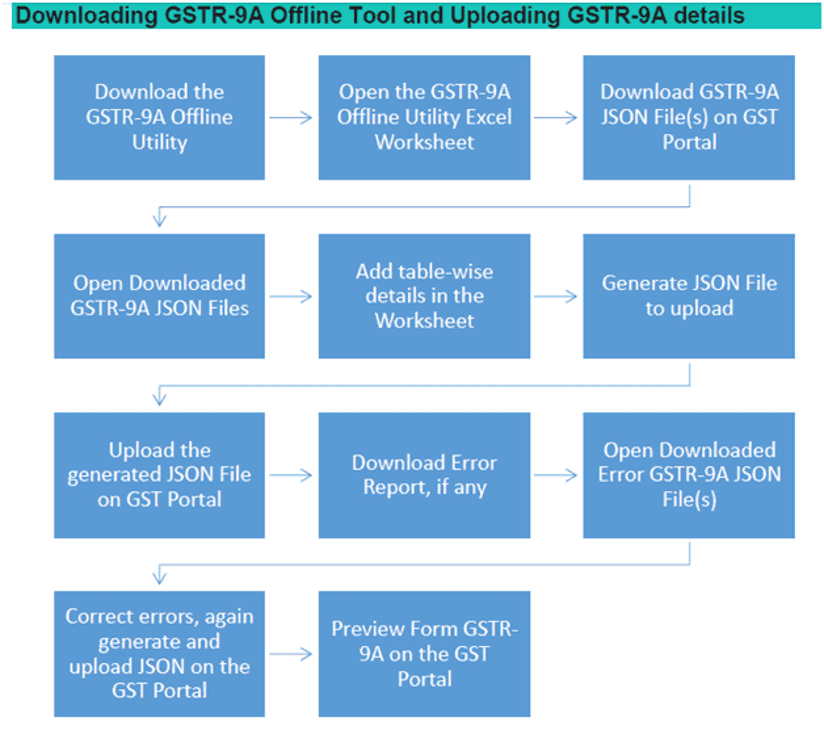
1. Now you have to downloading GSTR-9A Offline Tool and Uploading GSTR-9A details as above details.
2. Open the GSTR-9A Offline Utility Excel work sheet,
3. Download GSTR-9A JSON File(s) from the GST Portal,
4. Open download GSTR-9A JSON File(s),
5. Add table- wise details in the work sheet,
6. Generate JSON File to upload
7. Upload JSON File to upload
8. Upload the generated JSON File on GST Portal
9. Preview Form GSTR-9A on the GST Portal
10. Download Error report , if any
11. Open Downloaded Error GSTR-9A JSON File(s).
Notes on GSTR-9A is continue dt. 4.5.2019.
Dear Colleagues, before going to down load GSTR-9 Offline Utility, You have to do the following exercise as per my suggestion. You have to prepare excel sheet with monthly out ward and inward turnovers as per books and compare with GSTR-4 returns from July 2017 to March,2018 and also with Income Tax Return filed for the Financial Year 2017-18.
Excel Sheet: Prepare as per books of Accounts
Name of the Assesse: | ||||||
GSTIN No: | xxxxxxxxx | |||||
Financial Year: 2017-18 | ||||||
Status of the Firm: Regular (From—– to ——) Composition (From——– to ——–) | ||||||
S.No. | Month | Inward Turnover | Outward Turnover | Total Turnover for Quarter | Tax Paid Quarter Wise | Challan Particulars |
I’st Quarter |
|
|
|
|
|
|
1 | April, 2017 | xxxxx | xxxx | xxxx | xxxx | xxxx |
2 | May, 2017 | xxxxx | xxxx | xxxx | xxxx | xxxx |
3 | June, 2017 | xxxx | xxxx | xxxx | xxxx | |
Total |
| xxxx | xxxx | xxxx | xxxx | xxxx |
II’nd Quarter |
|
|
|
|
|
|
4 | July, 2017 | xxxx | xxxx | xxxx | xxxx | xxxx |
5 | Aug, 2017 | xxxx | xxxx | xxxx | xxxx | xxxx |
6 | Sept, 2017 | xxxx | xxxx | xxxx | xxxx | xxxx |
Total |
| xxxx | xxxx | xxxx | xxxx | xxxx |
III’rd Quarter |
|
|
|
|
|
|
7 | Oct, 2017 | xxxx | xxxx | xxxx | xxxx | xxxx |
8 | Nov, 2017 | xxxx | xxxx | xxxx | xxxx | xxxx |
9 | Dec, 2017 | xxxx | xxxx | xxxx | xxxx | xxxx |
Total |
| xxxx | xxxx | xxxx | xxxx | xxxx |
IV’th Quarter |
|
|
|
|
|
|
10 | Jan, 18 | xxxx | xxxx | xxxx | xxxx | xxxx |
11 | Feb, 2018 | xxxx | xxxx | xxxx | xxxx | xxxx |
12 | Mar, 2018 | xxxx | xxxx | xxxx | xxxx | xxxx |
Total |
| xxxx | xxxx | xxxx | xxxx | xxxx |
Now Prepare Excel sheet as per GSTR-4 from I st Quarter to IV th Quarter (I st Quarter VAT Act and IInd Quarter, IIIrd Quarter and IVth Quarter GST Act) and compare with previous excel sheet as per books.
Name of the Assesse: | |||||||
GSTIN No: | xxxxxxxxxx | ||||||
Financial Year: 2017-18 | |||||||
Status of the Firm: Regular (From—– to ——) Composition (From——– to ——–) | |||||||
S.No. | Month | outward Supply of Goods as per Books | outward Supply of Goods as per Form GSTR-4 | Any difference between Books and GSTR-4 | Such difference in which quarter shown (subsequent tax period) | Note: Noted here any differences observed in any quarter for the F.Y. 2017-18 | Noted here date of shifted from regular to composition/ composition to regular if any |
I’st Quarter |
|
|
|
|
|
|
|
1 | April, 2017 | xxxx | xxxx | xxxx | xxxx | xxxx |
|
2 | May, 2017 | xxxx | xxxx | xxxx | xxxx | xxxx |
|
3 | June, 2017 | xxxx | xxxx | xxxx | xxxx | xxxx |
|
Total |
| xxxx | xxxx | xxxx | xxxx | xxxx |
|
II’nd Quarter |
|
|
|
|
|
|
|
4 | July, 2017 | xxxx | xxxx | xxxx | xxxx | xxxx |
|
5 | Aug, 2017 | xxxx | xxxx | xxxx | xxxx | xxxx |
|
6 | Sept, 2017 | xxxx | xxxx | xxxx | xxxx | xxxx |
|
Total |
| xxxx | xxxx | xxxx | xxxx | xxxx |
|
III’rd Quarter |
|
|
|
|
|
|
|
7 | Oct, 2017 | xxxx | xxxx | xxxx | xxxx | xxxx |
|
8 | Nov, 2017 | xxxx | xxxx | xxxx | xxxx | xxxx |
|
9 | Dec, 2017 | xxxx | xxxx | xxxx | xxxx | xxxx |
|
Total |
| xxxx | xxxx | xxxx | xxxx | xxxx |
|
IV’th Quarter |
|
|
|
|
|
|
|
10 | Jan, 18 | xxxx | xxxx | xxxx | xxxx | xxxx |
|
11 | Feb, 2018 | xxxx | xxxx | xxxx | xxxx | xxxx |
|
12 | Mar, 2018 | xxxx | xxxx | xxxx | xxxx | xxxx |
|
Total |
| xxxx | xxxx | xxxx | xxxx | xxxx |
|
Now you have to go to www.gst.gov.in and down load GSTR-9A Offline Utility and prepare based on excel sheet as per books of account only.
Picture-1

Picture-2

Picture-3

Picture-4
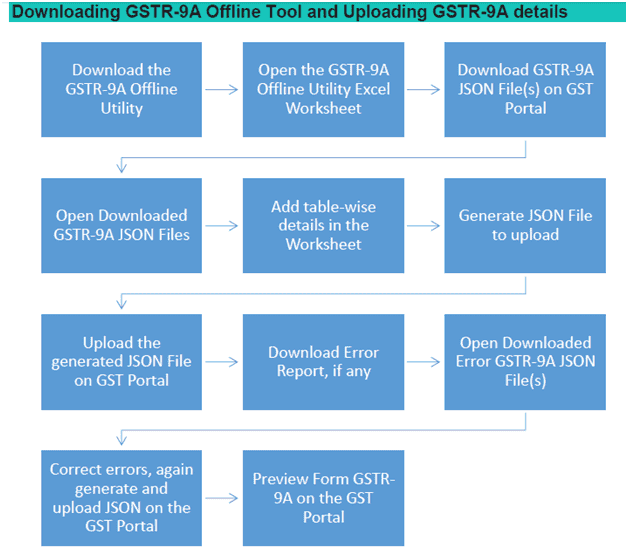
Now you have enter into HOME sheet in the main page of the utility. It is used to perform following 4 functions.
Function 1. Enter Mandatory details i.e. GSTIN Number and Financial Year. Without entering these details you will not be able to validate the data which you entered in various worksheets and also you will not be able to import the JSON file into the offline utility,
Function 2. Generate JSON file, for upload of GSTR-9A return details prepared offline o GST portal, using Generate JSON File to upload button,
Function 3. Import and open Error JSON File downloaded from GST portal using Open Download Error JSON Files button,
Function.4. import and open JSON File downloaded from GST portal using Open Downloaded GSTR-9A JSON File button.
Now we are learning howand what details are filling in each Table in GSTR-9A in Offline Utility as per GST Law,2017.
PART-I.
Table.1: Financial Year:For the financial year 2017-18 ( We have to considered for the purpose of aggregate Turnover) the period covered shall be from July,2017 to March,2018 since the GST was launched with effect from 1st July,2017.
Table.2: GSTIN No : XXXXXXXXXX
Table.3 & 3B: Legal Name: Prem Chand Jain
Trade Name : Sree Surya Enterprises
Table 4: Period of Composition scheme during the year ( 01.07.2017 to 31.03.2018)
Table 5: Aggregate Turnover of previous Financial year. We are to taking into consideration for the purpose of aggregate turnover of Financial Year 2016-17 shall be entered into this Table . It is the sum total of turnover of all taxpayers registered on the same PAN Number.
PART-II.
Tables | Description of Tables |
6 | Details of Outward supplies made during the financial year 2017-18 (From 01.07.2017 to 3.03.2018) |
7 | Details of Inward supplies on which tax is payable on reverse charge basis (net of debit/credit notes) for the financial year 2017-18. |
8 | Details of other inward supplies for the financial year 2017-18. |
Now you have to down load JASON File in offline Utility to fill up . This step is to be done by you to download and to open the system-computed Form GSTR-9A data based on filed Form GSTR-4 in the Offline Tool. Data so download can be edited and can be used to prepare details of Table 6 to Table 16 of Form GSTR-9A for upload on the GST Portal.
1. To download the generated JSON file from the GST Portal, perform following steps:
2. Access the www.gst.gov.in URL. The GST Home page is displayed,
3. Login to the portal with valid credentials,
4. Dashboard page is displayed. Click the Services > Returns > Annual Returns command,
5. Alternatively, you can also click the Annual Return link on the Dashboard.
Picture-5

The File Annual Returns page is displayed. Select the Financial Year for which you want to file the return from the drop down list: 2017-18.
Click the Search Button.
Picture-6

The GSTR-9A tile is displayed with an Important message box on the bottom. In the GSTR-9A tile. Click the Prepare Offline button.
Picture-7

The Upload section of the Offline UPLOAD AND DOWNLOAD for GSTR-9A page is displayed by default. Click the download section for picture: 8.
Picture 8

Click the GENERATE JSON file to Download button:
Picture-9

A message is displayed that Your request for generation has been accepted kindly wait for 20 minutes .
Picture 10.

Once the JASON file downloaded click here to down load-File -1 Link.
Picture 11
The generated JSON file is downloaded. Generated JSON file contains the system computed Form GSTR-9A data based on filed Form GSTR-4 for editing in the Offline Tool.
Picture 12
Unzip the downloaded files which contain the generated JSON file.
Picture 13
To open the downloaded GSTR-9A JSON File to view & edit the system-computed Form GSTR-9A data, based on filed Form -4 and to prepare details of Table 6 to Table 16 of Form GSTR-9A in the Offline Tool, perform following steps:
Go to the Home tab and enter Your GSTIN and Financial year( Select from the drop-down list) for which you want to file Form GSTR-9A (2017-18).
Picture 14
Note an Important Point:
Generate JSON file, for upload of GSTR-9A return details prepared offline on GST portal using Generate JSON File to upload button,
Import ad open Error JSON File downloaded from GST portal using Open Downloaded Error JSON Files button,
Import and open JSON File downloaded from GST portal using Open Downloaded GSTR-9A JSON File button,
Click the Open Downloaded GSTR-9A JSON File button.
Picture 15
Select the downloaded JSON file and click on OK to proceed.
Picture 16
Now You got Success message is displayed. Click the OK button to proceed.
Picture 17
Now all the entries that were auto filled in relevant fields of different tables of Form GSTR-9A, based on filed Form GSTR-4, would be auto-populated in the respective sheets in the Offline tool. Next, you need to add or edit table wise details in the worksheet, which is explained below:
Picture 18
Add table wise details in the worksheet:
For preparing details in Offline Utility you have two options:
(i) Either download the utility from GST portal and fill up required details,create JSON File ad then upload on the GST Portal, OR
(ii) Download the JSON file from the Portal containing system computed details of Form GSTR-9A and import it/ open it into the offline tool and then edit it. All the entries will be editable except tax paid in Table 9 which will be prefilled and non-enterable.
To add table-wise details of Outward supplies made during the financial year , details of inward supplies on which tax is payable on Reverse Charge Mechanism (RCM) basis (Net of debit/credit notes) for the financial year and details of other inward supplies for the financial year. Refer picture No. 19.
Picture 19
Note: The table below provides the worksheet name, table name and detailed description for this sheet.
Picture 20
It has been noted that this table seeks the details of all taxable , exempted, Nil-rated and Non GST supplies. However the details of taxable outward supplies are reported in GSTR-4. Accordingly, for the purpose of GSTR-9A the details has to be segregated between the taxable, exempted portion of the outward supplies.
In Table No. 6A: These following details to be entered:-
(a). Aggregate value of all outward supplies ,
(b). Outward supplies shall be net of debit notes/credit notes, (These details are to be declared as net of credit notes or debit notes issued in this regard.
(c). Outward supplies shall be net of advances (Please refer the below notes on GST liability on advances) and,
(d). Outward supplies shall be net of goods returned for the entire financial year shall be declared here.
Note on GST discharge on advance received against supply of goods: The requirement to pay GST on advances received in respect of goods has been dispensed for all the tax payers (excluding Composition supplier) on the recommendation of 23rd GST Council Meeting held on 10th November,2017-Notification No.66/2017-Central Tax-dated.15th November,2017. Earlier, GST Council vide its 22nd meeting held on 6th October,2017, Notification No.40/2017-Central Tax-dated.13th October,2017 has decided that taxpayers having annual aggregate turnover up to Rs.1.5 Crores shall not be required to pay GST at the time of receipt of advances on account of supply of goods.
Now the same has been extended to all the taxpayers but excluding COMPOSITION SUPPLIER . Hence, it needs to be ensured that the GST needs to be paid on the advances received by the Composition Supplier as per Time of Supply stipulated in section 12(2) of CGST Act,2017. Dear Colleagues, in my knowledge in India most of the Compositions Suppliers are not discharged GST on advances received against supply of goods. So, kindly take more concentration on this area.
Interlink with GST RETURNS:
Table 6 of GSTR-4: The details of the outward supply made by the Composite Supplier made in Table 6 of GSTR-4 is required to be reported in Table 6A of GSTR-9A. The details of outward supplies reported in the table 6of GSTR-4 is net of advances received and goods returned during the quarter. Advance received against supply of goods is also part aggregate turnover as it is a consideration for supply.
Rate of Tax applicable to Composition Supplier:
The rates have been prescribed under Rule 7 of the CGST Rules as mentioned below:
(i) @1% of the turnover in State or turnover in Union Territory in case of Manufacturers. However,@0.5% of the turnover in State or Union Territory shall be levied as per the recommendation of the 23rd GST Council Meeting held on 10th November ,2017-vide Notification No.1/2018-Central Tax Rate-dated.1st January,2018 w.e.f. 01.01.2018. Further amended vide Notification No.3/2018 Central Tax.dated. 23rd January,2018 w.e.f. 1st Jan,2018 , in order to keep a uniform rate of tax for both TRADERS and MANUFACTURERS. Further, it must be noted that the Total Turnover (Taxable and Exempted Turnover).
(ii) 0.5% of the turnover in State or turnover in Union Territory in case of other supplier eligible for composition levy (generally Traders). However, it must be noted that the tax shall be calculated only on the taxable turnover as per the recommendation of the 23rd GST Council Meeting held on 10th November, 2017 vide Notification No. 1/2018-Central Tax Rate-dated.1st January,2018 w.e.f. 01.01.2018. Further amended vide Notification No.3/2018 Central Tax.dated.23rd January, 2018 w.e.f. 1st Jan,2018.
(iii) @2.5% of the turnover in State or Union Territory in case of persons engaged in making supplies referred to Paragraph 6(b) of Schedule II ,vide Notification No.3/2018-Central Tax-Dated, 23rd January,2018. w.e.f. 1.1.2018.
The said paragraph states that the composite supply shall be treated as supply of service where the supply, by way of or as a part of any service or in any other manner whatsoever, of goods, being food or any other article for human consumption or any drink (other than alcoholic liquor for human consumption), where supply or service is for cash, deferred payment r other valuable consideration.
In Table No. 6B : These following details to be entered:-
In this table you have to enter the following details to be included.
(a). Aggregate value of exempted , NIL Rated and NON-GST supplies shall be mentioned.
(b). As per section 10(2) of the CGST Act,2017, registered person who makes any supply of goods which are not leviable to tax under GST will straight away sweep out of the composition scheme, For Example: Petroleum , Alcohol for human consumption etc.,
(c). As per section 2(47) of CGST Act,2017, Exempted supply means supply of goods and/or services which attract NIL rate of tax or which may be WHOLLY EXEMPT FROM TAX UNDER SECTION 11 or Under Section 6 of IGST Act,2017, and includes which no-taxable supply. The definition of exempt supply has THREE LIMBS . The inclusive part clearly states that exempt supply means supply of non-taxable supplies also.
Table 7 deals with the details of inward supplies on which tax is payable on reverse charge basis ( net of debit/credit notes) for the financial year. Kindly refer the below Table 7 to know how the details fill up.
7 | Details of inward supplies on which tax is payable on reverse charge basis (net of debit/credit notes) for the financial year. | |||||
| Description | Taxable value | Central Tax | State Tax /UT Tax | IGST | Cess |
| 1 | 2 | 3 | 4 | 5 | 6 |
A | Inward supplies liable to reverse charge received from registered persons | xxxx | xxxx | xxxx | xxxx | xxxx |
B | Inward supplies liable to reverse charge received from unregistred persons | xxxx | xxxx | xxxx | xxxx | xxxx |
C | Import of services | xxxx | xxxx | xxxx | xxxx | xxxx |
D | Net Tax payable on (A),(B) and (C ) above | xxxx | xxxx | xxxx | xxxx | xxxx |
NOTE: Opening words of the section 10 states that Notwithstanding anything to the contrary contained in this Act. However, It is pertinent to note that the provisions of this section is subjected to section 9(3) and section 9(4). It gets significant to understand the relevance of these sections as in why is it applicable for the persons availing the composition scheme.
In Table -7A: you have to enter the below data as per books of account for the year 2017-18 (1.7.2017 to 31.3.2018 and also verify such turnovers with Table 4B,4C,4D, 5,5A,5B,5C and Table -8A of GSTR-4 of 3 quarters.
Sec.9(3) of the CGST Act,2017, deals with the person liable to pay tax under the reverse charge mechanism. This means that is the person availing the Composition Scheme, is also liable to pay tax under RCM, then such person shall irrespective of payment of composition tax, shall also be liable to pay tax under RCM under Section 9(3).
Aggregate value of all inward supplies received from registered persons on which tax is to be paid by the recipient ( by the person filing the annual return) on RCM. The aforesaid details of inward supplies liable to RCM shall be including advances and net of credit and debit notes.
There is no necessity to mentioned the details of supplies received from unregistered persons o which tax is levied on RCM and aggregate value of all import of services in Table 7A of GSTR-9A.
In Table.7B: you have to enter the below data as per books of account for the year 2017-18 (1.7.2017 to 31.3.2018 and also verify such turnovers with Table 4B,4C,4D, 5,5A,5B,5C and Table -8A of GSTR-4 of 3 quarters.
The aggregate value of all inward supplies received form an unregistered person on which tax is paid by the recipient (The person filing the annual return) on RCM. The above details of inward supplies liable to RCM shall be including advances and net of credit and debit notes.
There is no necessity to mention the aggregate value of all import of services in this table.
In Table 7C: you have to enter the below data as per books of account for the year 2017-18 (1.7.2017 to 31.3.2018 and also verify such turnovers with Table 4B,4C,4D, 5,5A,5B,5C and Table -8A of GSTR-4 of 3 quarters.
You have to enter aggregate value of all services imported during the financial year shall be mentioned in this table. Such details are inward supplies liable to RCM shall be net of credit and debit notes.
Every detail of the purchase invoice in respect of import of service shall be furnished by the composite supplier such as invoice no, Invoice Date , Invoice Value, rate of tax on the supply , taxable value amount of respective tax and /or Cess along with the place of supply in Table 4D of GSTR-4. Though the import of service is falling under the RCM but as the same cannot be made from the registered person, hence for this purpose a separate row has been made seeking the details of import of service.
Sub-Table | Description of Sub-Table | Auto/Manual | Link with GST Returns | Corresponding Tables of GSTR-4 |
8A | Inward supplies from registered persons (other than Table 7A above) | Manual | GSTR-4 | Table-4A and Table -5 |
Table -8: You have to enter the following details of other inward supplies as declared in returns filed (GSTR-4 ) during the Financial year. Inward supplies from registered persons (other than Table 7A above) and also aggregate value of import of goods.
Aggregate value of all services imported during the financial year shall be mentioned din this Table.
Once the details are entered, click the VALIDATE SHEET button.
Picture 21
In case of unsuccessful validation, error-intimation popup will appear and the cells with error will be heighted. Close the popup by clicking OK.
Refer Picture 22
The comment box for each cell, that has errors, will show the error message. The user can read the error description of each cell and correct the errors as mentioned in the description box.
Refer Picture 23
Alternatively, click the Review ribbon-tab> Show All Comments link to view the comments for fields with errors.
Refer Picture 24
After you have corrected all the errors, again click the Validate Sheet button.
Refer Picture 25
A popup message box appears Sheet successfully validated. No error(s) found Click OK.
Refer Picture 26
Go to the Part III tab and enter details of tax paid as declared in returns filed during the financial year.
Refer Picture No. 27.
Note: The table below provides the worksheet name, table name and details description for this work sheet.
Refer Picture No 28
Once the details are entered, click the Validate Sheet. In case of any errors, follow the steps as mentioned above to correct the errors.
Refer the Picture No 29
A popup message box appears Sheet Successfully Validated. No error(s) found. Click OK.
Refer Picture No. 30
Go to the PART IV tab and enter particulars of the transactions for the previous Financial Year declared in returns of April to September of current Financial Year or up to date of filling of annual return of previous Financial Year whichever is earlier.
Refer picture no. 31
Tables | Description of Tables |
10 | Supplies / tax (outward) declared through Amendments(+) (Net of debit notes) |
11 | Inward supplies liable to reverse charge declared through Amendments(+) (net of debit notes) |
12 | Supplies /tax (outward) reduced through Amendments(-)(net of credit notes) |
13 | Inward supplies liable to reverse reduced through Amendments(-) (net of credit notes) |
14 | Difference tax paid on account of declaration made in 10,11,12 & 13 above |
Note: The table below provides the worksheet name, table name and detailed description for this worksheet.
Refer Picture 32
Once the details are entered, click the Validate Sheet. In case of any errors, follow the steps as mentioned above to correct the errors.
Refer Picture No 33
A popup message box appears Sheet Successfully Validated. No error(s) found. Click OK.
Table 10: In this table the following details of supplies/tax (outward) declared through Amendments (+) (net of debit notes ) as declared in returns of April,2018 to September,2018.
Details of additions or amendments to any of the supplies already declared in the returns of the previous financial year. But Such amendments were furnished in Table 7 (relating to outward supplies ) of GSTR-4 of April, 2018 to September, 2018 or up to the date of filling of Annual Return for the previous Financial Year 2017-18, whichever is earlier shall be declared In this box.
Supplies or tax declared should be net of debit notes.
Table 11: In this table the following details of additions or amendments to any of the supplies already declared in the returns of the previous financial year . But such amendments were furnished in Table 5 (relating to inward supplies ) of GSTR-4 of April,2018 to Septemeber,2018 or up to the date of filing of Annual Return for the previous Financial Year 2017-18, whichever is earlier shall be in this box.
Supplies or tax declared should be net of debit notes.
Table 12: In this table the following details of supplies/tax (outward) reduced through Amendments (-) (net of credit notes) as declared in returns of April,2018 to September, 2018.
Details of additions or amendments to any of the supplies already declared in the returns of the previous financial year. But such amendments were furnished in Table 7 (relating to outward supplies) of GSTR-4 of April,2018 to September, 2018 or up to the date of filling of Annual Return for the previous Financial Year 2017-18, whichever is earlier shall be declared In this box.
Supplies or tax declared should be net of debit note
Table 13: In this table the inward supplies liable to reverse charge mechanism(RCM) reduced through Amendments (-) (net of credit notes) as declared in returns of April, 2018 to September, 2018. But such amendments were furnished in Table 5 (relating to inward supplies ) of GSTR-4 of April, 2018 to September, 2018 or up to the date of filing of Annual Return for the previous Financial Year 2017-18, whichever is earlier shall be in this box.
Supplies or tax declared should be net of credit notes.
Table 14: In this table the differential tax paid on account of declaration made in Tables 10, 11, 12 & 13 of GSTR-9A.
14 | Differential tax paid on account of declaration made in 10,11,12 & 13 above | ||
| Description | Payable | paid |
| 1 | 2 | 3 |
| Integrated Tax | xxxxxx | xxxxxx |
| Central Tax | xxxxxx | xxxxxx |
| State Tax / UT Tax | xxxxxx | xxxxxx |
| Cess | xxxxxx | xxxxxx |
| Interest | xxxxxx | xxxxxx |
Refer Picture No. 34
Go to the PART.V tab and enter Particulars of demands and Refunds and details of credit reversed or availed for the relevant financial year of which the return is being filed.
Refer Picture No. 35
Note: The Table provides the worksheet name, table name and detailed description for this worksheet.
Refer Picture No. 36
PART-V | Other Information | |||||||
Particulars of Demands and Refunds | ||||||||
Description | Central Tax | State Tax/ | IGST Tax | Cess | Interest | Penalty | Late Fee others | |
| 1 | 2 | 3 | 4 | 5 | 6 | 7 | 8 |
A | Total Refund Claimed | XXXX | XXXX | XXXX | XXXX |
|
|
|
B | Total Refund Sanctioned | XXXX | XXXX | XXXX | XXXX |
|
|
|
C | Total refund Rejected | XXXX | XXXX | XXXX | XXXX |
|
|
|
D | Total refund Pending | XXXX | XXXX | XXXX | XXXX |
|
|
|
Table.15 A,B,C and D: These following details are entered in this Table :
Aggregate value of refunds shall be declared I the above excel table in segregated manner as mentioned below:
Claimed: Refund claimed will be the aggregate value of all the refund claims filed in the financial year and will include refunds which have been sanctioned, rejected or are pending for processing.
Sanctioned: Refund sanctioned means the aggregate value of all refund sanction orders.
Rejected: Any refund application will be rejected during the year such aggregate rejected application amount of aggregate values and
Pending for processing: Refund pending will be the aggregate amount in all refund application for which acknowledgement has been received and will exclude provisional refunds received.
Non GST values are not requiring mentioning in this table.
Illustration: Refund in case of area based exemption, budgetary support scheme etc.,
Situation in which Refund to be claimed | Application for Claiming refund | Forms to identify Sanctioned refund amount | Forms to identify Rejected refund amount | Forms to identify Pending refund amount |
Excess payment of tax due to mistake or inadvertence , if any | GST RFD-01 | GST RFD-06/ | GST RFD-06 | GST RFD-02 |
Excess balance in Electronic Cash Ledger | GST RFD-01A | GST RFD-06/ | GST RFD-06 | GST RFD-02 |
On type of order (i). Assessment (ii). Provisional Assessment- Finalization of provisional assessment. (iii). Appeal and (iv). Any other Order >. Payment of duty/ tax during the investigation but no/ less liability arises at the time of finalization of investigation/ adjudication. | GST RFD-01 | GST RFD-06/ GST RFD-07 | GST RFD-06 | GST RFD-02 |
PART-V | Other Information | |||||||
Particulars of Demands and Refunds | ||||||||
Description | Central Tax | State Tax/ | IGST Tax | Cess | Interest | Penalty | Late Fee others | |
| 1 | 2 | 3 | 4 | 5 | 6 | 7 | 8 |
E | Total demand of taxes | xxxx | xxxx | xxxx | xxxx | xxxx | xxxx | xxxx |
F | Total taxes paid in respect of E above | xxxx | xxxx | xxxx | xxxx | xxxx | xxxx | xxxxx |
G | Total Demands pending out of E above | xxxx | xxxx | xxxx | xxxx | xxxx | xxxx | xxxxx |
Table 15 E: The aggregate value of demands of taxes for which an order confirming the demand has been issued by the adjudicating authority shall be mentioned in this table,
Table 15F: The aggregate value of taxes PAID out of the total value of confirmed demand as declared in Table 15E above shall be mentioned in this table,
Table 15 G: The aggregate value of demands pending recovery out of Table 15E above shall be mentioned in this table.
Table 16 A : The Aggregate value of all credit reversed when a person opts to pay tax under the Composition scheme shall be entered in this table . (Form ITC-03 detals)
Table 16 B: The aggregate value of all the credit availed when a registered person opts out of the composition scheme shall be entered in this box.( Form ITC-01 details).
A pop message box appears Sheet successfully Validated. NO error (s) found. Click OK.
Refer Picture 37
Generate Jason File to upload. Perform following steps:
From the tab you are on, go to the HOME sheet by either clicking the Go Home button or clicking the Home sheet.
Refer Picture No. 38
Click the Generate JSONN File to upload button:
Picture No. 39
A success message is displayed that data in the sheets are successfully captured in the JSON File. Please save this file and upload in the online portal to initiate filling.
Refer Picture No. 40
Save as pop-up window appears. Select the location where you want to save the JSON file, enter the file name and click the SAVE Button.
Refer Picture No. 41

Go Back to the Main Menu
Upload the generated Jason File on GST Portal.
To upload the generated JASON File on the GST portal, perform following steps:
(i) Access the www.gst.gov.in URL. The GST Home page is displayed.
(ii) Login to the portal with valid credentials
(iii) Dashboard page is displayed. Click the Services > Returns> Annual Return command. Alternatively, you can also click the Annual Return link on the Dashboard.
Refer Picture No. 42

The File Annual Returns page is displayed . Select the Financial Year for which you want to file the return from the drop-down list.
Click the SEARCH button.
Refer Picture NO. 43
The GSTR-9A tile is displayed, with an Important Message box on the button. In the GSTR-9A tile. Click the Prepare Offline button.
Refer Picture No. 44
The Upload section of the Offline Upload and Download for GSTR-9A page is displayed. Click the Choose File button.
Refer Picture No.45
Browse and navigate the JSON file to be uploaded from your computer. Click the Open button. Refer Picture No. 46
The upload section page is displayed. A green message appears confirming successful upload and asking you to wait while the GST Portal validates the uploaded data. And, below the message, is the Upload History table showing Status of the JSON file uploaded so far.
Refer Picture No. 47
In case, there was some error in data uploaded like invalid GSTIN etc, then the Upload History table will show the Status of the JSON file as Error Occurred . Rectify the error and upload the JSON file again by following the steps mentioned in the hyperlink to download error report, if any: Download Error Report, if any
Refer Picture No. 48
Go back to the Main Menu
Preview From GSTR-9A on the GST Portal, perform following steps:
Access the www.gst.gov.in URL. The GST Home page is displayed.
Login to the portal with valid credentials,
Dashboard page s displayed. Click the Services > Returns > Annual Return command. Alternatively, you can also click the Annual Return link on the Dashboard.
Refer Picture No. 49
The File Annual Returns page is displayed. Select the Financial Year for which you want to file the return from the drop-down list.
Click the SEARCH button.
Refer Picture No. 50
The GSTR-9A tile is displayed. In the GSTR-9A tile, Click the PREPARE ONLINE button.
Refer Picture No. 51
A question is displayed. You need to answer this question as to whether you want to file NIL return for the financial year or not, to proceed further to the next screen.
Note: NIL return can be filed by you for the financial year , if you have:
(i) NOT made any outward supply ( commonly known as SALE),
(ii) NOT received any goods or services (Commonly known as purchase),
(iii) No other liability to report ,
(iv) NOT claim any refund ,
(v) NOT received any order creating demand , and
(vi) There is no late fee to be paid etc.,
Refer Picture No. 52
Click the NEXT Button,
The GSTR-9A Annual Return for Composition Taxpayers page is displayed.
The details you had successfully uploaded on the portal using the Offline Utility would be displayed in Table 6 to 16.
Refer Picture No. 53
For knowing how to proceed to file the GSTR-9A Return online, Please follow the steps mentioned in the following hyperlink: GSTR-9A Online Manual.
Download Error Report if any , while uploading GSTR-9A JSON File for correcting entries, that failed validation on the GST Portal, perform following steps:
Error Report will contain only those entries that failed validation checks on the GST Portal. The successfully-validated entries can be previewed online. Click Generate error report hyperlink.
Refer Picture No. 54
A confirmation message is displayed and Columns Status and Error Report change as shown.
Refer Picture No. 55
Once the error report is generated, Download error report link is displayed in the Column Error Report. Click the Download error report link to download the zipped error report.
Refer Picture No. 56
The error JSON File is downloaded on your machine. Error report will contain only those entries that failed validation checks on the GST Portal.
Refer Picture No. 57
Unzip and save the JSON File in your machine.
Refer Picture No. 58
Import the JSON File into the offline utility and make updates as necessary, as explained below:
Open Downloaded Error GSTR-9A JSON File (s):
To open the downloaded Error GSTR-9AJSON File for correcting entries that failed validation on the GST Portal , perform following steps:
Open GSTR-9A Offline Utility and go to the Home tab. Under the section Error File Handling. Click the Open Downloaded Error JSON Files button.
Refer Picture No. 59
A file dialog will open. Navigate to extracted error file. Select the file and click the OK button.
Refer Picture No. 60
Success message will be displayed. Click the OK button to proceed.
Refer Picture No. 61
Navigate to individual sheets. Correct the errors, as mentioned in the column GST Portal Validation Errors in each sheet.
Refer Picture No. 62
After making corrections in a sheet, click the Validate Sheet button to validate the sheet. Similarly, make corrections in all sheets and click the Validate Sheet button in each sheet.
Refer Picture No. 63
From the tab you are on, go to the Home tab by either clicking the Go Home button or clicking the Home tab to generate summary. Follow steps mentioned in the following Hyperlinks to generate and upload the JSON file: Generate JSON File to upload and upload the generated JSON file on GST Portal.
Dear colleagues, I have completed my notes on GSTR-9A with practical manner from today onwards. I have prepared the above notes based on GSTIN FAQ and User Manual- Offline Utility with GST Law, 2017 and considered various notifications, circulars etc., I have prepared notes on what are the details are mentioned in each table wise column wise as per books of accounts at the end of the year and compare with GSTR-4 returns. Before preparation of this Annual Return (GSTR-9A), Here you have to observe that date of choosing as composition dealer by your client, based on that ITC related issues will be check as per GST Form ITC-01 and ITC-03 etc., with books of accounts. Kindly note that for eligibility for Composition scheme the financial year 2017-18 and 2018-19 is Rs.1 Croreonly. Most of the professionals and traders are having impressions that Government was enhanced limit from Rs.1 cr to 1.50 cr middle of the year (What s app news). BUT AS PER NOTIFICATION NO.14/2019 CENTRAL TAX DATED. 7.3.2019, CLEARLY MENTIONED THAT THIS AMENDMENT WITH EFFECT FROM 01.04.2019. So, in my opinion you have to concentrated on What is the previous Aggregate Turnover for the Financial year 2017-18 ,you have to consider aggregate turnover as per INCOME TAX Return for the Financial Year 2016-17 (12 Months) for 2017-18 and for the financial year 2018-19 you have to considered aggregate turnover as per Income Tax Return for the financial year 2017-18 (12 Months).

In case of any Doubt regarding Membership you can mail us at [email protected]
Join Studycafe's WhatsApp Group or Telegram Channel for Latest Updates on Government Job, Sarkari Naukri, Private Jobs, Income Tax, GST, Companies Act, Judgements and CA, CS, ICWA, and MUCH MORE!"