File you ITR on your Own: Know Step by Step Procedure to File ITR-1:
A step-by-step guide to filing ITR-1 (Sahaj) online for AY 2024–25 through the Income Tax e-Filing portal, including prerequisites, form sections, and verification process.
Easy Guide to File ITR-1 (Sahaj) Online for AY 2024–25
 Saloni Kumari
 Apr 24, 2025
Table of Contents

How to File ITR-1 (Sahaj) Online, Know Step by Step Procedure
Highlight
 Please Note:
 Please Note:
 Please do let us know in case of any query.
- The pre-filling and filing of ITR-1 service is available at the e-Filing portal for users who have registered themselves. This service helps individual taxpayers file their ITR-1 (Income Tax Return) in two ways: online directly on the e-Filing website or by downloading and using a tool (Excel or HTML format) to file it offline.
Prerequisites for availing this service
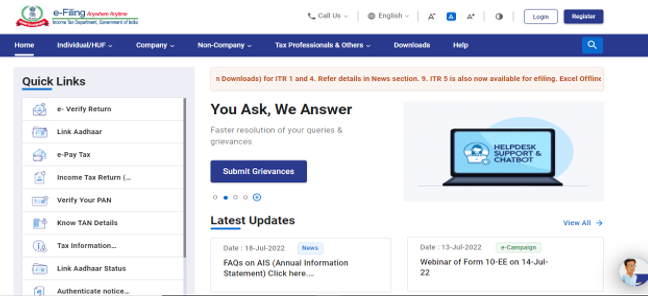
General- Register yourself at the e-Filing portal using login credentials such as user ID and password.
- In order to complete the registration process, your PAN must be activated.
- Residential Status of the person should be Resident.
- Pre-validate minimum one bank account for collecting the refund amount and add minimum one bank account under My Bank account on the portal under Validation in progress status for completing the return filing process.
- A valid mobile number must be linked with Aadhaar / e-Filing portal / your bank / NSDL / CDSL (for e-Verification)
- If you're using the offline method, you can either download the official tool or use approved third-party software to file your return.
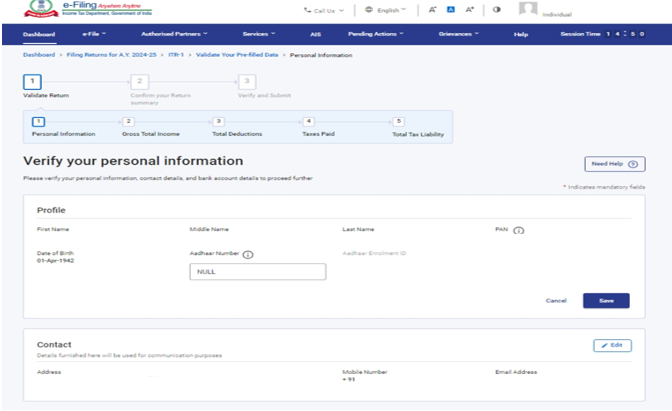
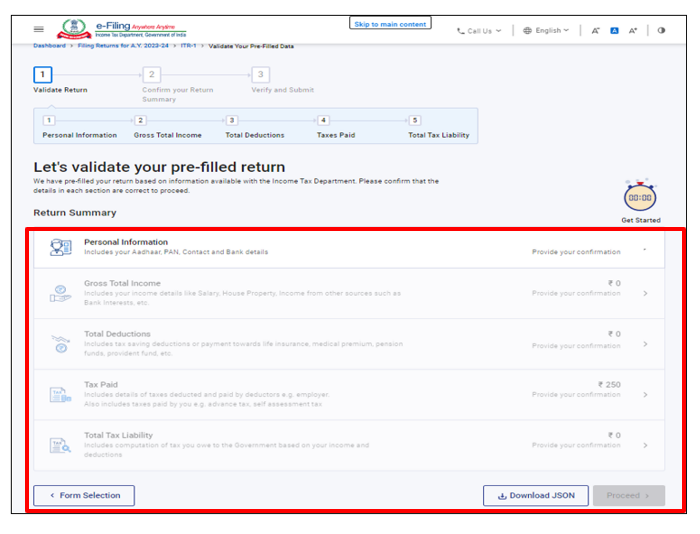
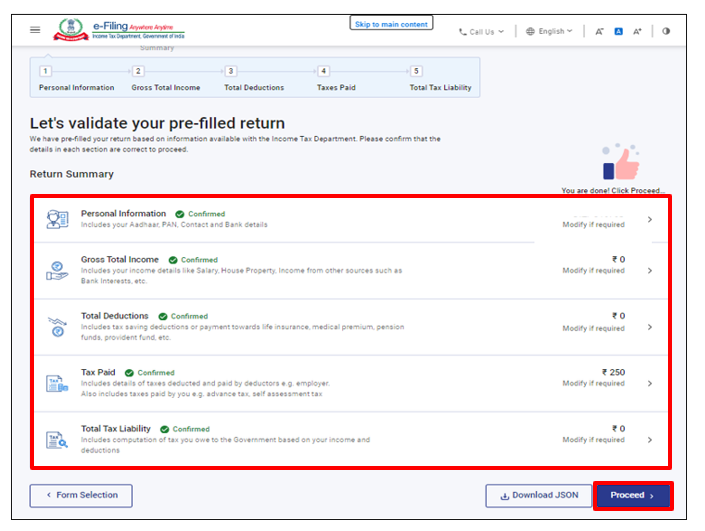
- Personal Information
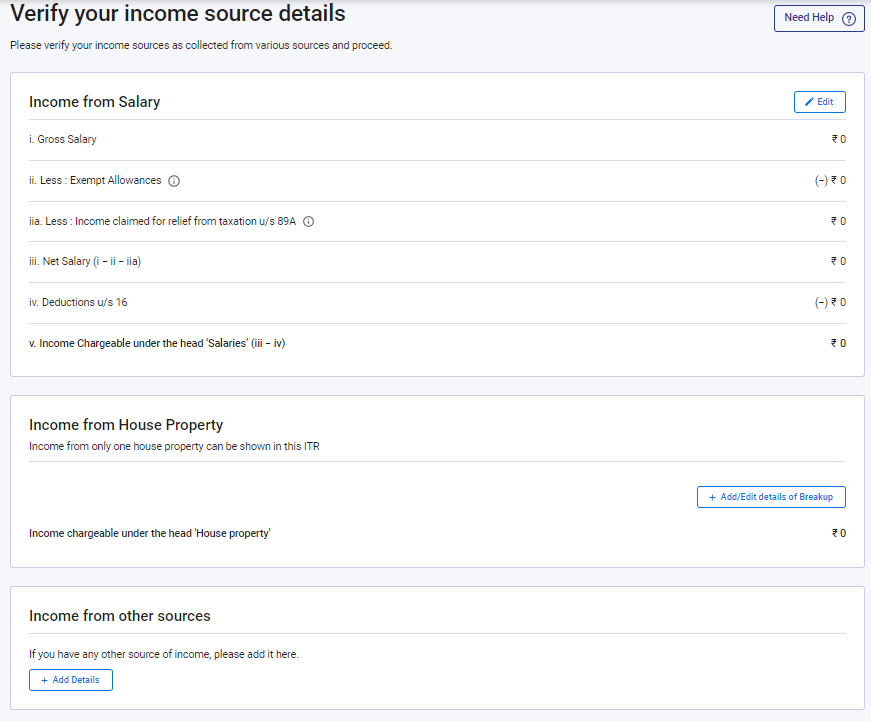
- Gross Total Income
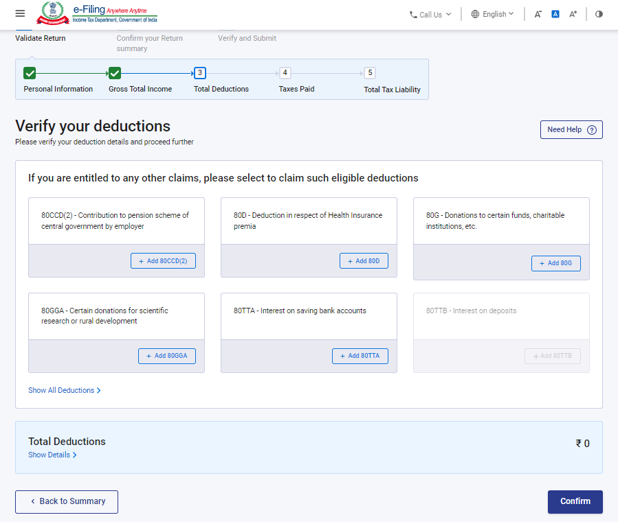
- Total Deductions
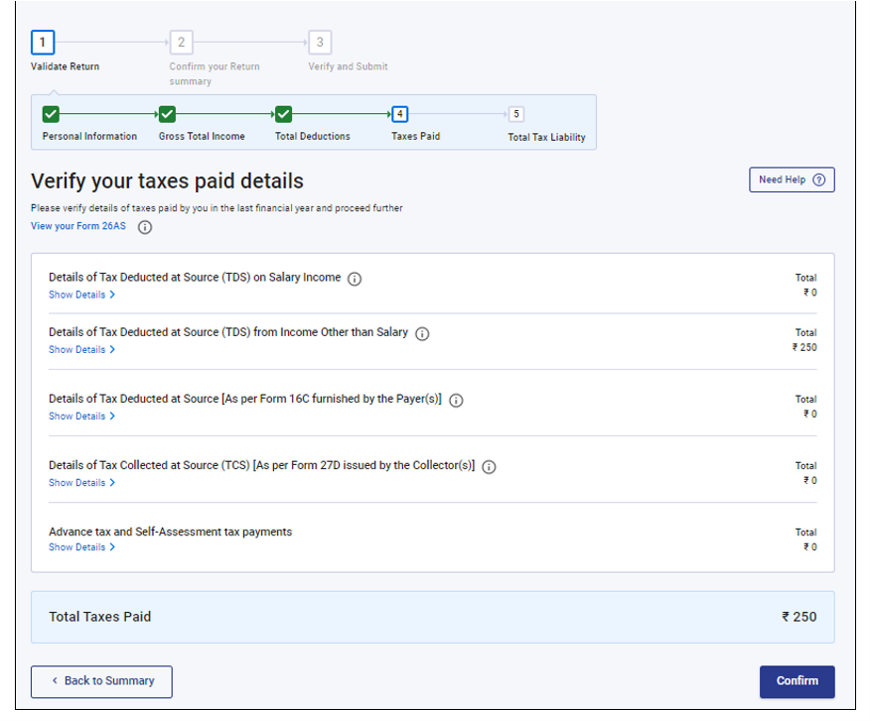
- Tax Paid
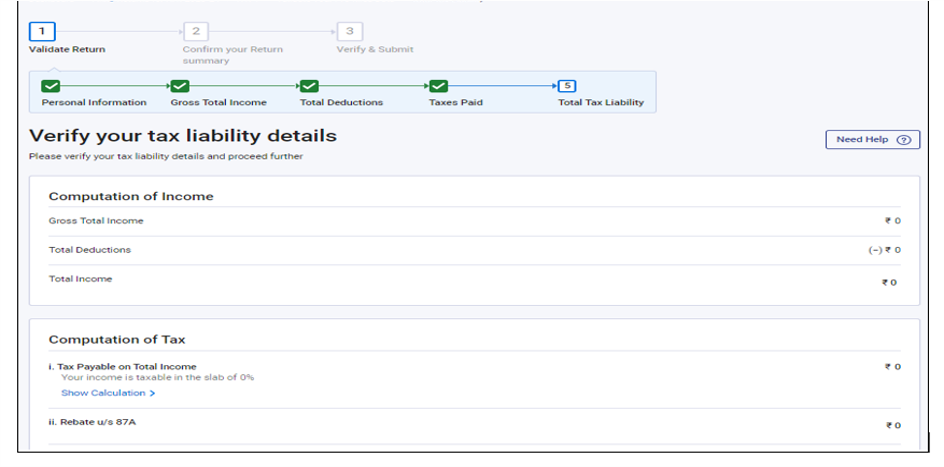
- Total Tax Liability
1. Personal Information
- In the first section of the ITR filing, the individual is required to provide their personal information. You need to verify the pre-filled data, which is auto-filled from your e-Filing profile. Candidates will not be able to make changes to their personal information directly in the form. But essential amendments can be made by visiting the profile section. The contact details, filing type details, and bank details can be edited in the form.
Please Note:
- The Finance Act 2023 has changed the rules under Section 115BAC, making the New Tax Regime the default option for most taxpayers, like Individuals, HUFs, AOPs, BOIs, and AJPs.
- If you don’t take any action, you will automatically be taxed under the New Tax Regime.
- But if you prefer the Old Tax Regime (which allows more deductions and exemptions), you must actively choose it.
2. Gross Total Income
- In this section, individuals will need to examine the pre-filled data, edit and confirm their income sources information from their salary/ pension, house property, and other sources (like interest income, family pension, etc.). Candidates are also allowed to add data on exempt income, if any.
3. Total Deductions
- In this section, individuals can add, delete and confirm any deduction applicable to them to claim as per Chapter VI-A of the Income Tax Act.
Please Note:
- New Tax Regime is the default regime. If you have not chosen the Old Tax Regime, only Deductions applicable as per Section 80CCD (2)- Employer's Contribution to Tier-1 NPS Account and Section 80CCH- amount credited in the Agniveer Corpus Fund will be visible.
- Change has been made in ITR forms to add a column to furnish the amount eligible for deduction under Section 80CCH.
4. Tax Paid
- In this section, candidates are required to confirm taxes paid by them in the last year. Tax details include TDS from Salary / Other than Salary as furnished by Payer(s), TCS, Advance Tax and Self-Assessment Tax.
5. Total Tax Liability
- In the Total Tax Liability section, you need to check the tax amount calculated based on the verified details you have entered.
4. How to Access and Submit ITR-1
The following methods can be used to file an ITR:- Online Mode – through the e-Filing portal
- Offline Mode – through Offline Utility
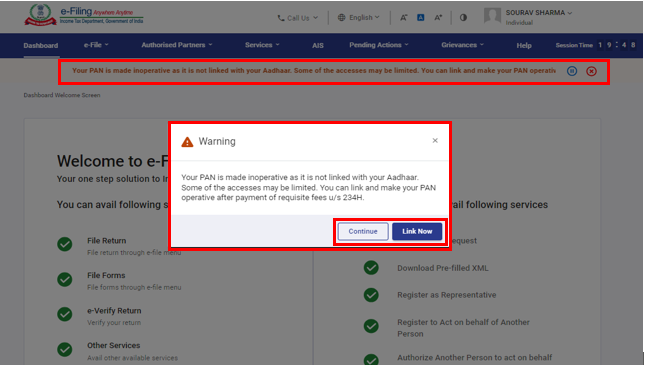
- Step 1: Log in to your account using the required login credentials (user ID and password) at the e-Filing portal.
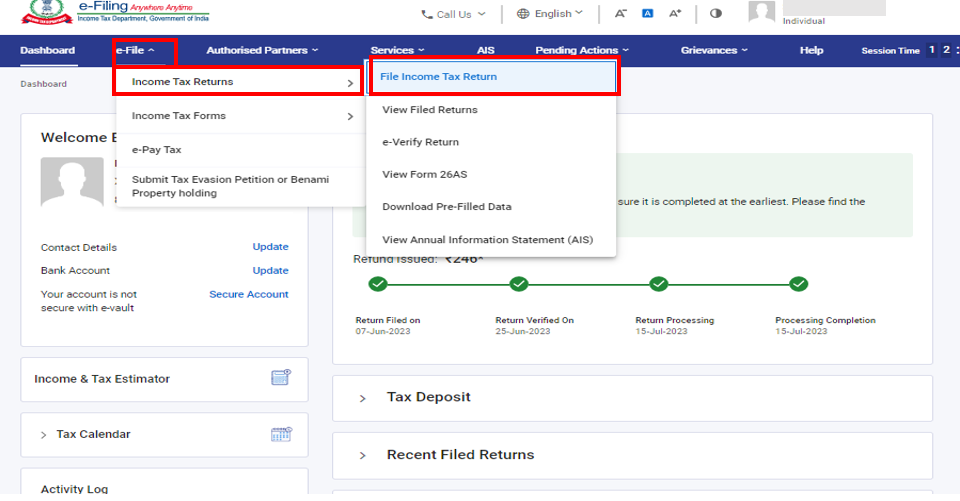
- Step 2: Follow- e-File > Income Tax Returns > File Income Tax Return, on the dashboard.\
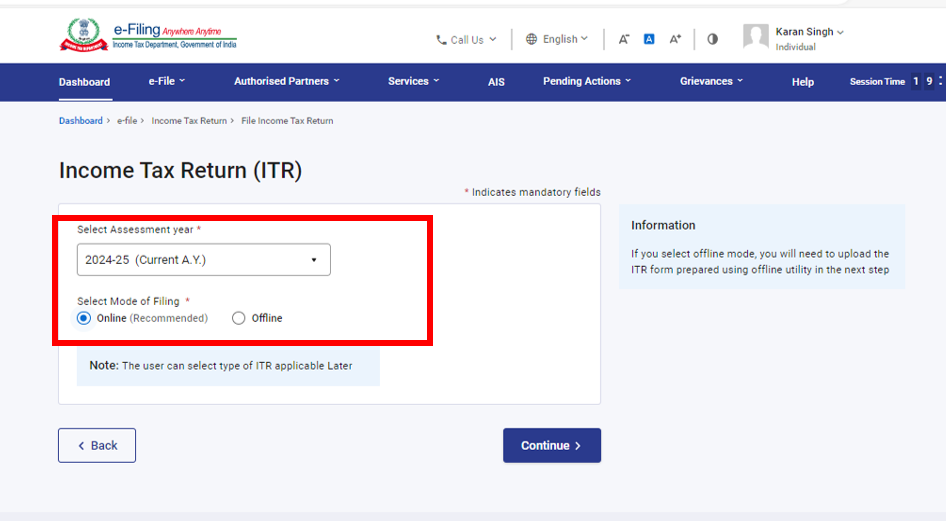
- Step 3: Select Assessment Year as 2024–25 and Mode of filling as Online, then click Continue.
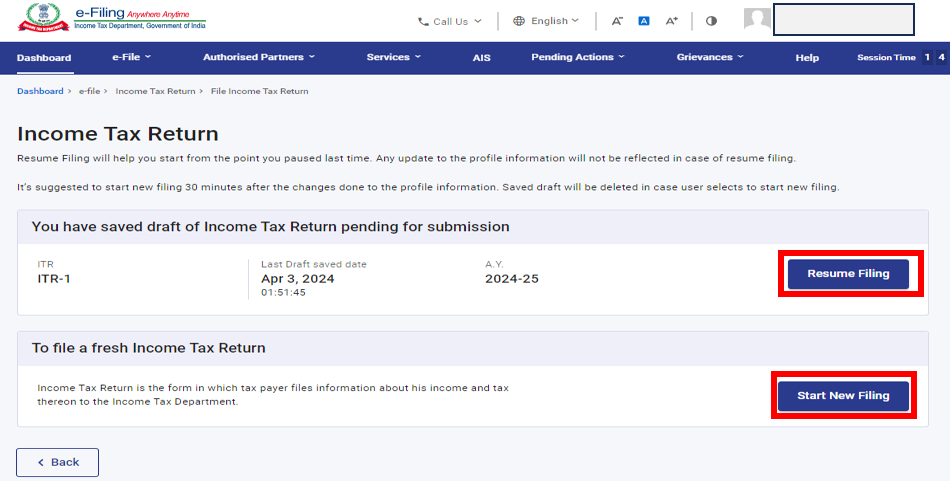
- Step 4: If you have already filled the Income Tax Return and only submission is left, click Resume Filing. In case you wish to discard the saved return and start preparing the return afresh, click Start New Filing.
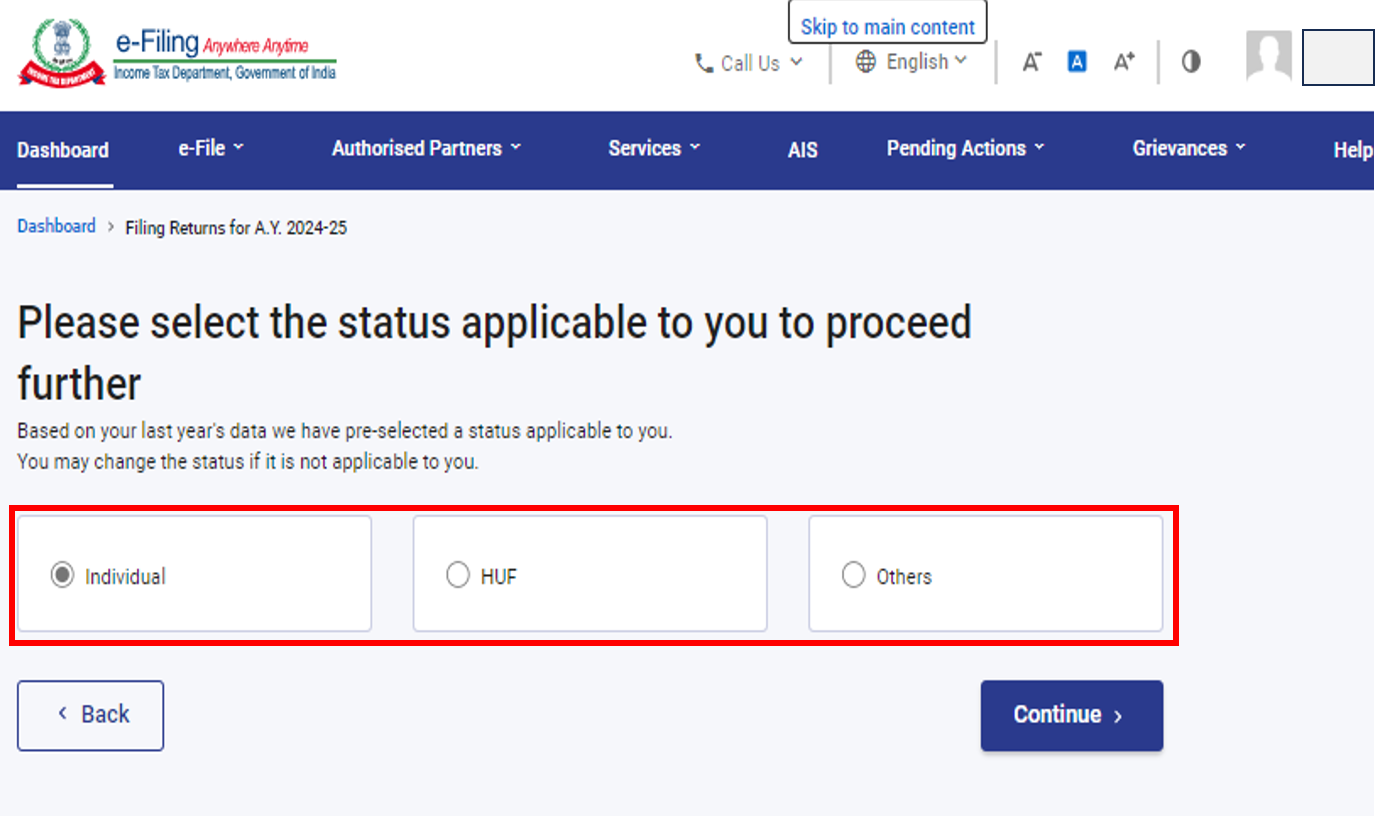
- Step 5: Choose Status as applicable to you and click the Continue button to proceed further.
- Step 6: Choose the type of Income Tax Return among the two options:
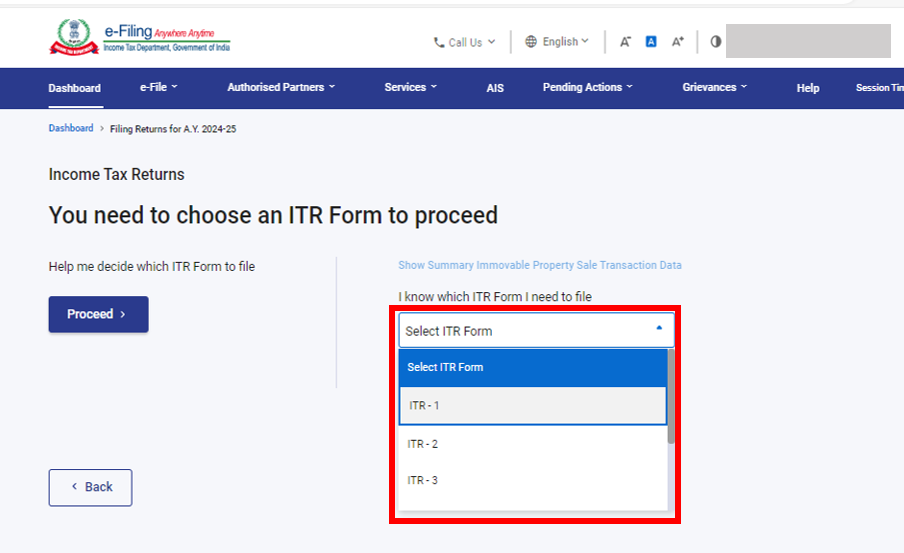
- If you know which ITR to file, select the ITR form; else
- If you are not sure which ITR to file, you may select Help me decide which ITR Form to file and click Proceed. Here, the system helps you determine the correct ITR, then you can proceed with filing your ITR.
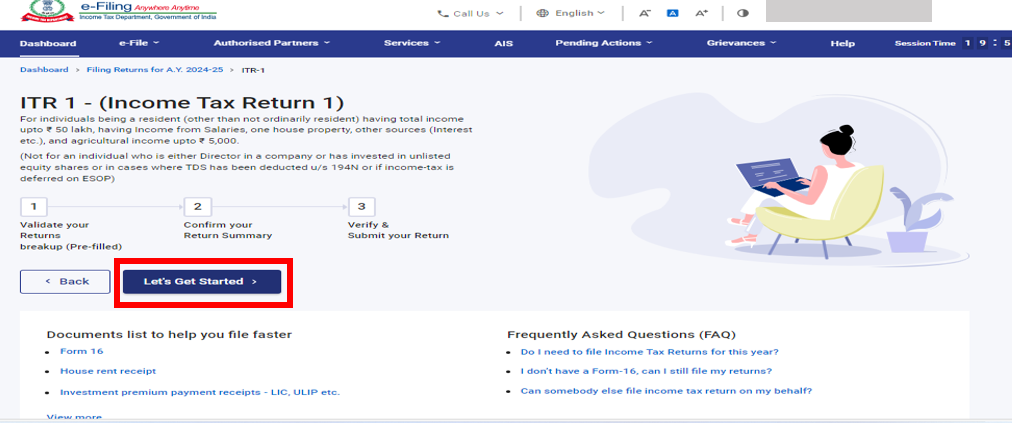
- Step 7: Once you have selected any one of the above, note the list of documents required and tab on "Let’s Get Started".
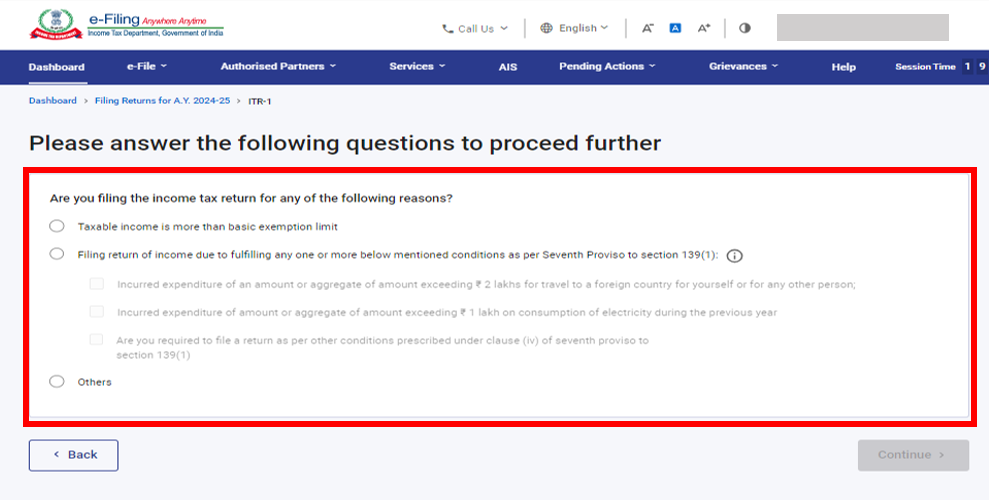
- Step 8: Choose the reason why you're filing the ITR by ticking the correct checkbox. Then, click Continue.
- Step 9: For AY 2024-25, the New Tax Regime is selected by default.
- If you want to stick with the Old Tax Regime, choose "Yes" in the Personal Information section.
- Review your pre-filled information. Make changes if needed, and add any missing details.
- At the end of each section, click Confirm.
- Step 10: Enter or update your income details and deductions in the respective sections.
- After you finish and confirm all sections, click Proceed.
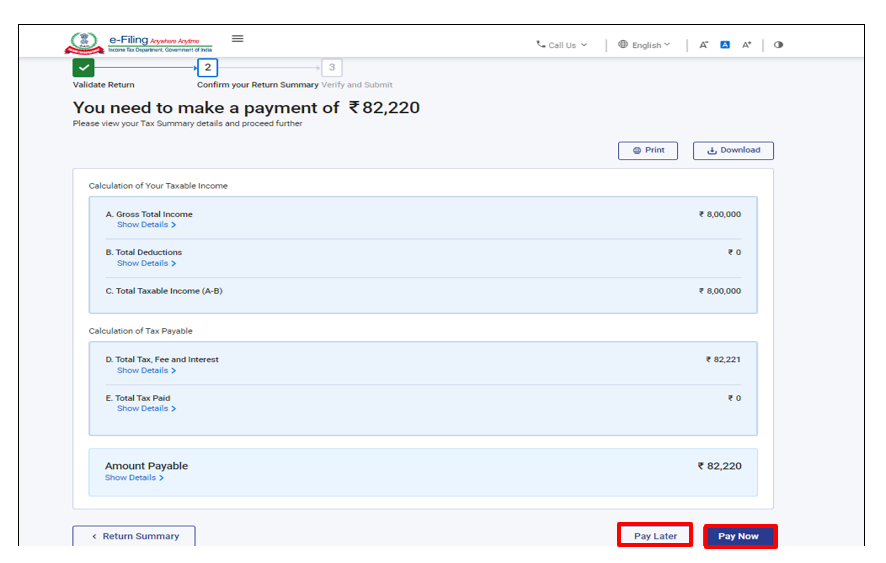
- Step 10a: If you have to pay tax:
- You'll see a summary of your tax calculation.
- If tax is due, you'll see two options: Pay Now and Pay Later.
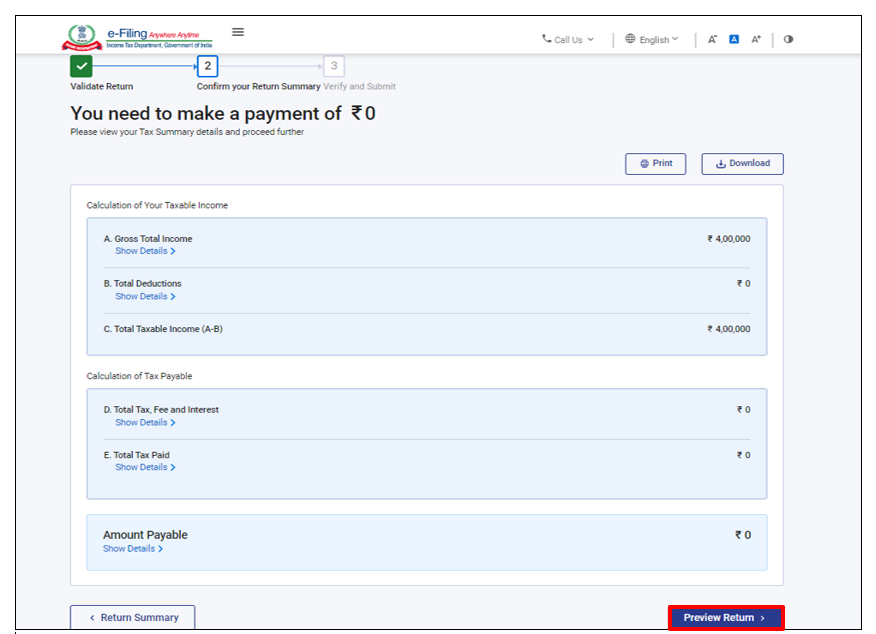
- Step 10b: If you don't have to pay tax or are getting a refund:
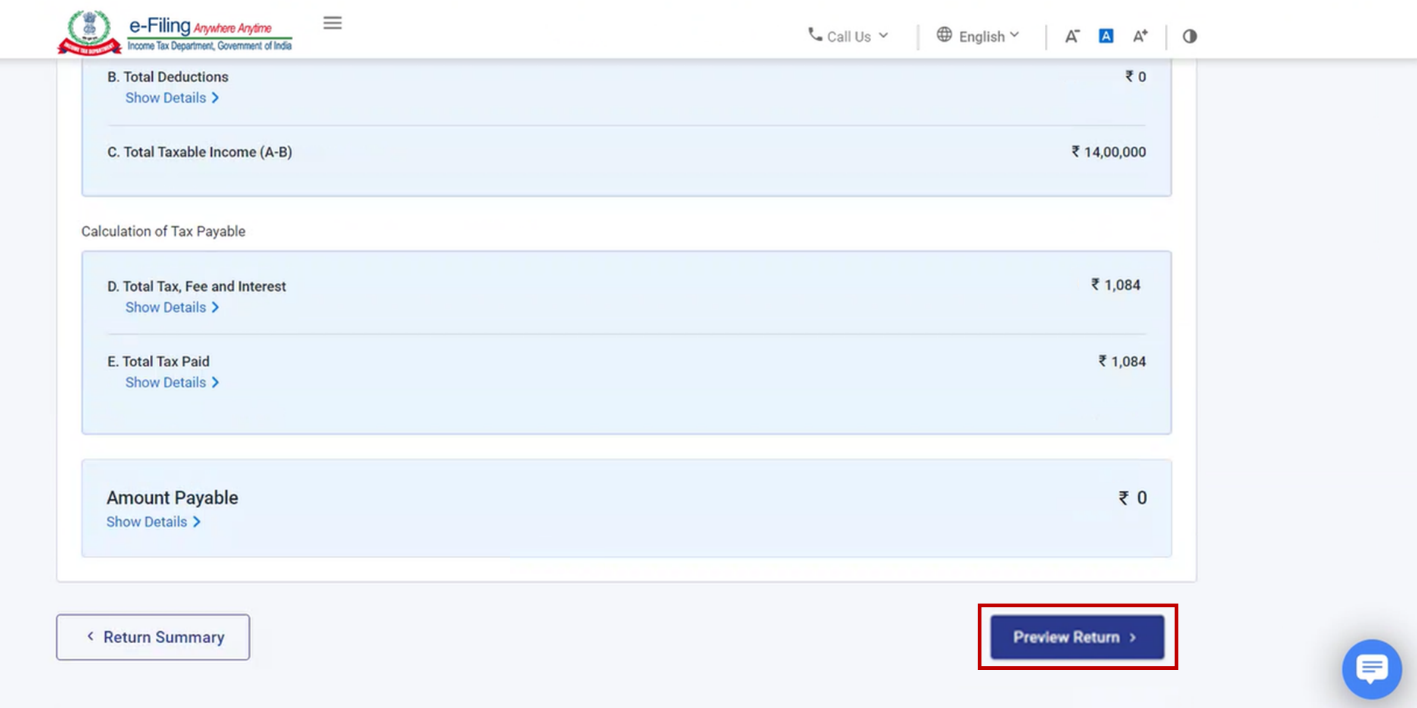
- Click Preview, Return to move ahead.
- You'll be taken to the page where you can preview and submit your return.
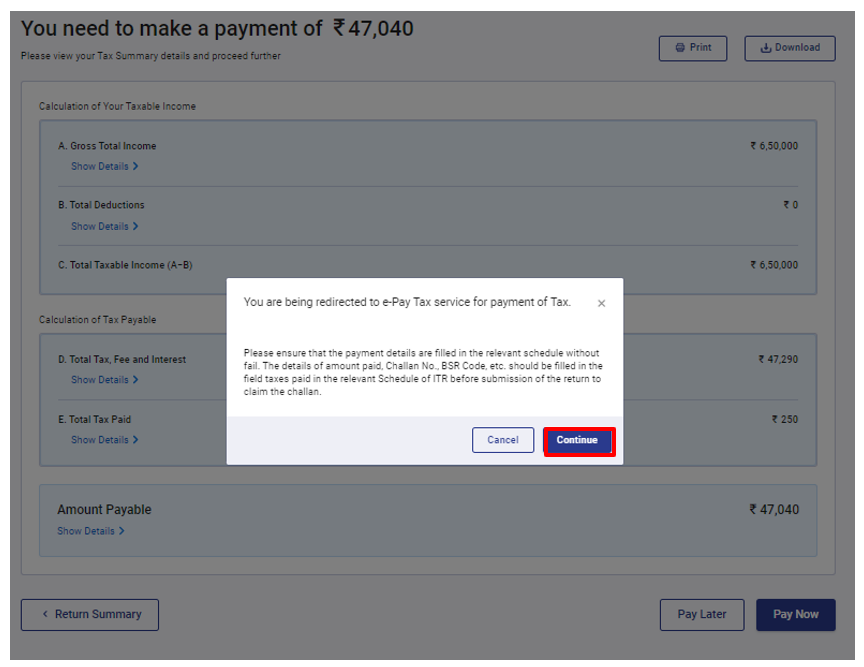
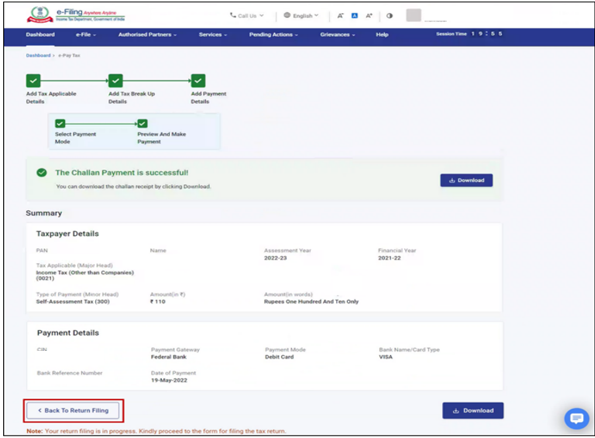
- Step 11: If you chose Pay Now, you'll be taken to the e-Pay Tax service. Click Continue.
- Step 12: After making the payment, you'll see a confirmation message.
- Click Back to Return Filing to go back and finish filing your return.
- Step 13: Click Preview Return.
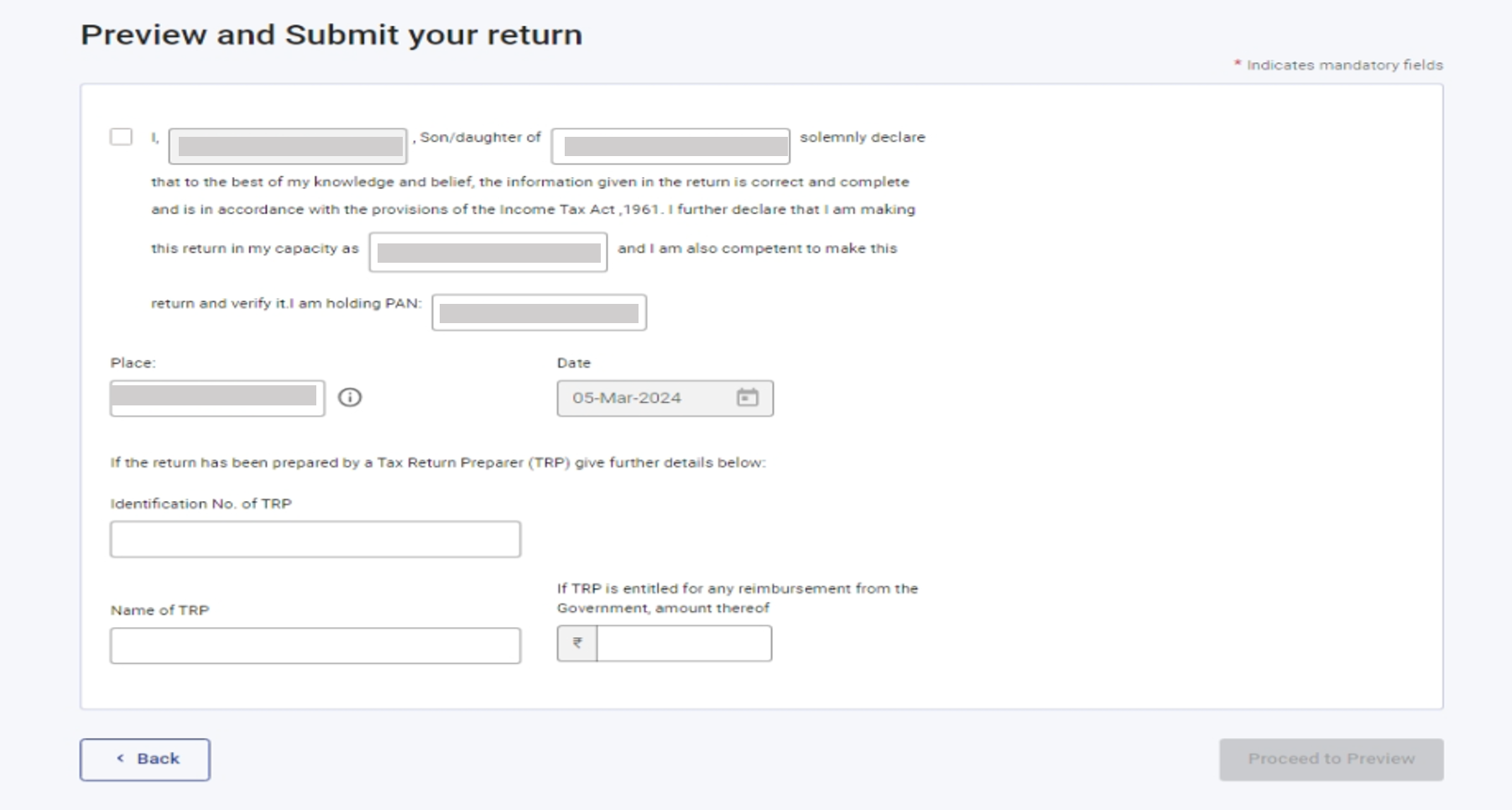
- Step 14: On the Preview and Submit Your Return page, tick the declaration checkbox and click Proceed to Preview.
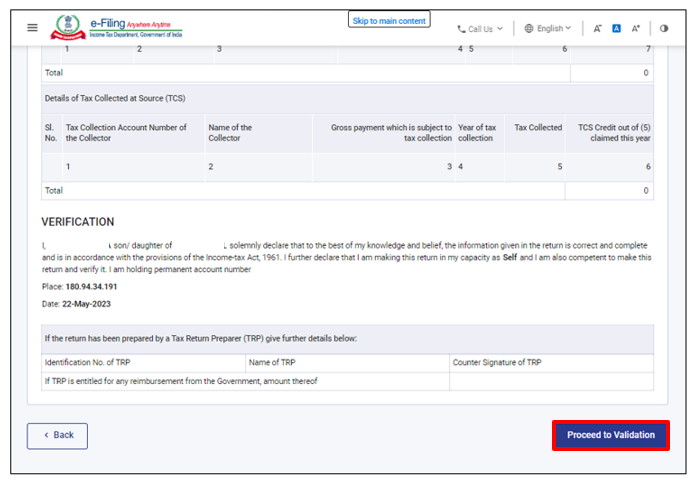
- Step 15: Check your return details carefully. Then, click Proceed to Validation.
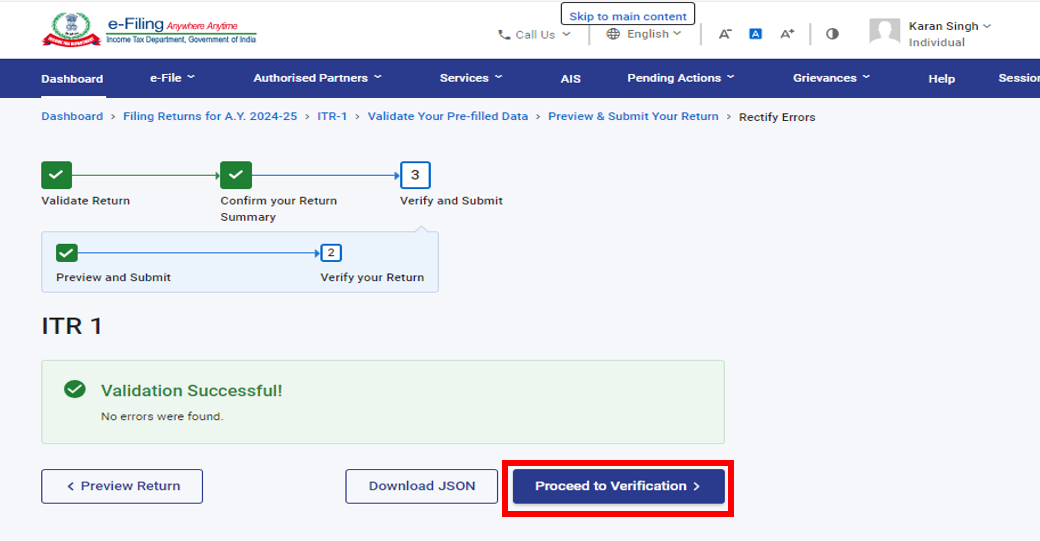
- Step 16: Once your return is validated, click Proceed to Verification.
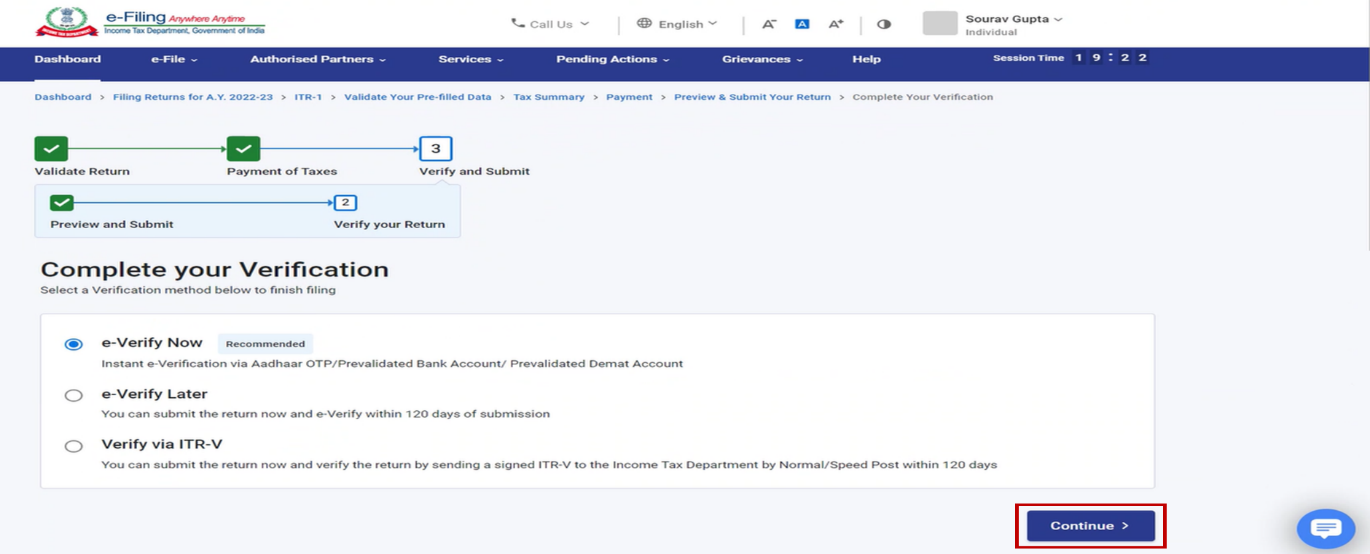
- Step 17: On the Complete Your Verification page, choose how you want to verify your return and click Continue.
- Important: Verifying your return is mandatory.
- e-Verify Now is the easiest and fastest way—it's online, secure, and doesn't require sending any papers.
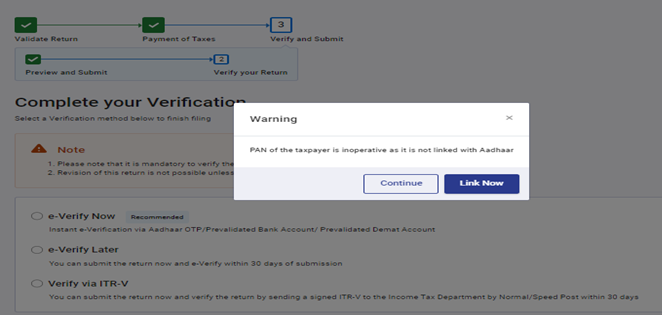
- (Optional) If your PAN is not linked to Aadhaar, you’ll see a Link Now option. You can either do it now or click Continue.
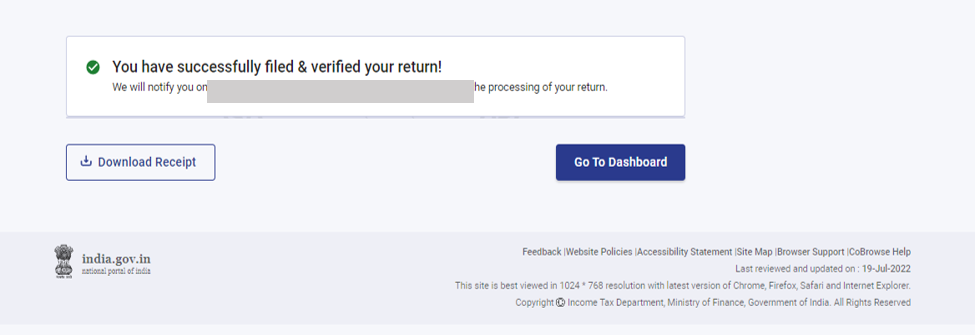
- Step 18: On the e-Verify page, choose how you want to e-verify (e.g., Aadhaar OTP, Net Banking, etc.) and click Continue.
Please do let us know in case of any query.About Author


Saloni Kumari
Content Writer
Saloni is a Content Writer with 2+ years of experience at studycafe.in. She writes legal, taxation, and finance related content including GST, Income Tax etc. Skilled in translating complex judicial pronouncements and regulatory developments into clear, and reader-friendly articles. Experienced in covering judgements of ITAT, High Court, GSTAT, and news related to Income Tax, GST, and corporate law. She can be reached at [email protected].
Saloni is a Content Writer with 2+ years of experience at studycafe.in. She writes legal, taxation, and finance related content including GST, Income Tax etc. Skilled in translating complex judicial pronouncements and regulatory developments into clear, and reader-friendly articles. Experienced in covering judgements of ITAT, High Court, GSTAT, and news related to Income Tax, GST, and corporate law. She can be reached at [email protected].
 StudyCafe
 Delhi, Delhi, India
 3023
3023My Recent Articles
- ED Apprehends Four Accused in Rs 261 Crore US Call Centre Fraud under PMLA, All Remanded to Judicial Custody
- How Are Diwali Gifts Taxed in 2026? Know the Income Tax, TDS and GST Rules
- ED Raids Ragam Theatre in Kerala’s Rs 300 Crore Bharat Lajna Co-operative Society Fraud Case
- CBI: Wanted in Delhi Sexual Assault Case, Accused Sajeer Palli Mooppam Extradited from UAE
- Max Healthcare Receives NCLT Order in Kalinga Hospital Dispute, Next Hearing Fixed for December 14
Up Next
Loading suggestions…


Recent Posts



All Posts



Tags
No tags yet.
Recent Posts
All Posts
Tags
No tags yet.