How to generate E-Way Bill
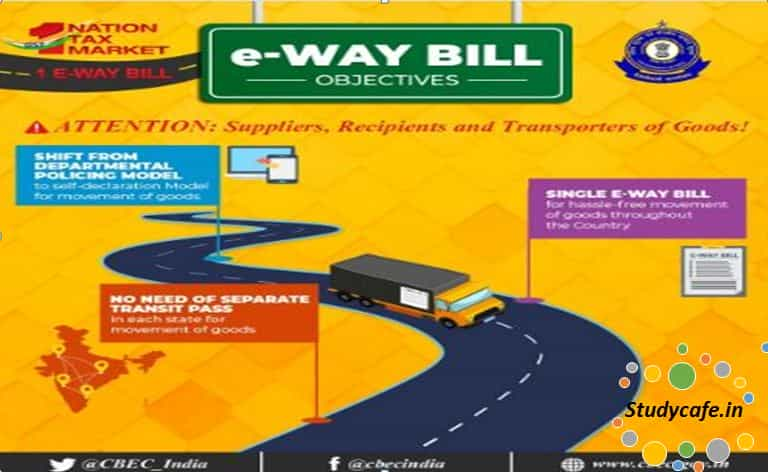
How to generate E-Way Bill The user has to open the e-Way Bill portal and enter his username and password along with the displayed captcha.
 CA Deepak Gupta
 Jan 18, 2018
Table of Contents

How to generate E-Way Bill
The user has to open the e-Way Bill portal and enter his username and password along with the displayed captcha. On successful authentication, the system shows him the main menu of the e-Way Bill System.
Now, the user needs to enter the Item Details. Product details can be auto populated if the user has entered the product details in Masters Products . By entering 2-3 characters of the product name, which is being transported, the system allows the user to select the product name which was updated in the masters by him previously. All other fields under this section like description, HSN, Unit, Tax rate are auto filled from the master. The user needs to enter the quantity and taxable value of the product mentioned in the document. The user shall add multiple products by clicking on . Based on the taxable value and rate of tax, the system will calculate CGST, SGST, IGST and CESS amount. The user is allowed to edit this amount also. It may be noted that the system will show the CGST and SGST tax rate for intra-state movement and IGST tax rate for inter-state movement.
Now, the user needs to select the mode of transportation - road, rail, air or ship and the approximate travelling distance between the selected supplier to recipient . If the goods are being moved directly by the user himself, then he can enter the Vehicle Number without entering the transporter details.
If a user is carrying out the transportation through a third party, then he /she will generate the E-way bill by entering the transporter id, transporter document number and date given by the transporter. The transporter ID can be auto populated, if the user has entered the transporters details in MastersTransporters . By entering 2-3 characters of the transporter, the system will allow the user to select the transporters name which was entered in the master. If the transporter ID is entered, the generated E-Way Bill will be forwarded to the concerned transporter login account, allowing the transporter to enter the vehicle number while goods are getting moved.
It may be noted that either transporter ID or Vehicle number is required to generate the e-Way Bill.
If a transporter is generating the e-Way Bill on behalf of the consignor/consignee, then the complete e-Way Bill entry form will be entered by him to generate the e-Way Bill. Here, the system allows him to enter both the consignor and consignee details without blocking any column.
Once a request for e-Way Bill is submitted, the system validates the entered values and pops up appropriate message if there is any error. Otherwise E-Way Bill in the EWB-01 form will be shown with the unique 12 digit number.
The e-Way Bill will not be valid for movement of the goods without the vehicle entry in the e-way bill form. Once the vehicle number is entered, the system will show the validity of the e-way bill. This indicates the user to get the goods moved within that valid date and time. Otherwise the movement of goods becomes illegal.
How to generate E-Way Bill
When the user selects the Generate e-way bill sub-option under e-waybill option, the following screen will be displayed, allowing the user to enter the e-way bill request details. This option is used to generate the new e-Way Bill. Before going for generating a new e-Way Bill, the user should have the Invoice/Bill/Challan document/details in his hand and user should know the, Transporter Id, through whom he/she is going to move the consignment or vehicle number through which the consignment is being moved. In the e-Way Bill entry form, first the user needs to select the type of transaction - outward or inward. The outward indicates, the user is supplying the goods and inward indicates the user is receiving the goods. Now the user needs to select the type of document from the drop down menu as per the document in his hand. The user will enter the document number and select the date of document, as given in the document (invoice, bill or challan). The system will not allow user to enter the future date. For an outward type of transaction, in the From section, name, GSTIN and address of the supplier is auto populated with the user details. If he has the additional places of business, he will be allowed to select the place. Here, in spite of auto update, the user is allowed to edit the address.| For an outward type of transaction, in the From section | Name, GSTIN and address of the supplier is auto populated with the user details. If he has the additional places of business, he will be allowed to select the place. Here, in spite of auto update, the user is allowed to edit the address. |
| For an inward type of transaction, in the From section | Name, GSTIN and address need to be filled by the user. It can be auto populated if the user has entered the consignor details in Master Suppliers option. When a user enters 2-3 characters of the consignor, the system allows the user to select the consignor name which he has entered in the suppliers masters. All the other fields like GSTIN, from address are auto populated after selection. However, the system allows the user to edit. If the suppliers master has not been entered by the user, the system will allow him to enter the name, GSTIN and address details. |
| For an outward type of transaction in the TO section | The user needs to enter the name, GSTIN, and address of the consignee in the TO section. The consignee details can be auto populated if the user has entered the consignee details in the Master Clients option. When the user enters 2-3 characters of the consignee name, the system allow the user to select the consignee name which he has entered in the masters. All the other fields like GSTIN, the address are auto filled and is also editable by the user. If the master has not been entered for the consignee, the user shall enter the complete details. Here, also the user has to enter the URP in GSTIN column, if the consignee is un-registered person. |
|
For an inward type of transaction in the TO section |
The name, GSTIN and address of the recipient are auto populated with the user details. If he has the additional places of business, he will be allowed to select the place. Here, in spite of auto update, the user is allowed to edit the address. |
About Author


CA Deepak Gupta
Co Founder
CA Deepak Gupta,is Co-founder of Studycafe. He is Microsoft Office Specialist and Corporate Trainer of AI Tools, Microsoft Excel.
He is Finance Influencer having more than 250K followers on Social Media. CA Deepak Gupta, is Having more than 14 plus years of experience, and he has Worked with best brands Like, Hero, Wipro, Ericsson before Starting Studycafe. He has Trained more than 20000 Persons in Microsoft Excel, PowerPoint, Power BI, Google Sheet, Google Forms and Other Tools.
CA Deepak Gupta,is Co-founder of Studycafe. He is Microsoft Office Specialist and Corporate Trainer of AI Tools, Microsoft Excel.
He is Finance Influencer having more than 250K followers on Social Media. CA Deepak Gupta, is Having more than 14 plus years of experience, and he has Worked with best brands Like, Hero, Wipro, Ericsson before Starting Studycafe. He has Trained more than 20000 Persons in Microsoft Excel, PowerPoint, Power BI, Google Sheet, Google Forms and Other Tools.
 StudyCafe
 Delhi, Delhi, India
 3423
3423My Recent Articles
- UltraTech Cement slapped with Rs. 808.78 Cr Income Tax Demand
- GST: High Court upheld constitutional validity of Section 16(2)(c), asks government to address ITC issues of genuine purchasers
- Old vs New Tax Regime for Tax Year 2026-27
- High court criticizes Income Tax Department for not releasing ITR Utilities despite 11 years of directions
- Fino Payments Bank CEO Rishi Gupta Gets Bail in GST Case, Bank Clarifies No Direct Link
Up Next
Loading suggestions…

Recent Posts

All Posts

Tags
No tags yet.
Recent Posts
All Posts
Tags
No tags yet.