File Your Income Tax Return From Desktop
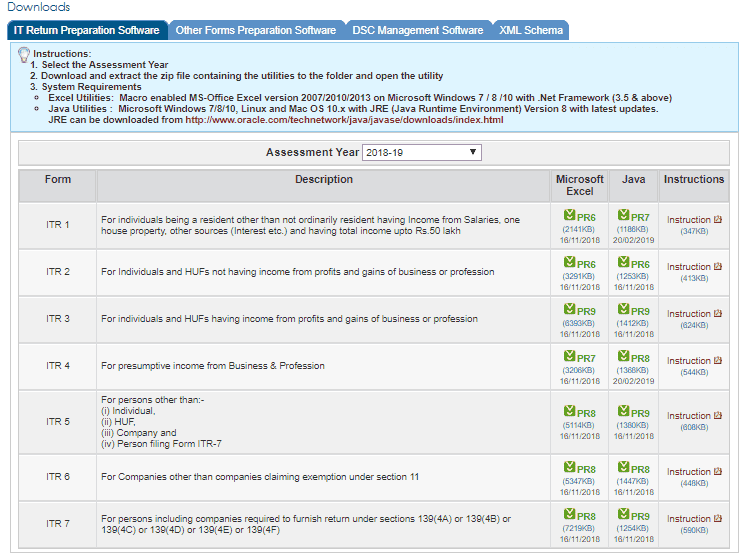
File Your Income Tax Return From Desktop Upload Income Tax Return To Upload ITR , please follow the below steps: Step 1 : Download the ITR p
 CA Deepak Gupta
 May 18, 2019
File Your Income Tax Return From Desktop
Upload Income Tax Return
To Upload ITR , please follow the below steps:
Step 1 : Download the ITR preparation software for the relevant assessment year to your PC / Laptop from the "Downloads" page.
Step 2 : Prepare the Return using the downloaded Software.
Gather all the information regarding your income, tax payments, deductions etc.
Pre-populate the personal details and tax payments/TDS by clicking on the 'Pre-fill' button. Compare with the information you have to ensure that nothing is left out.
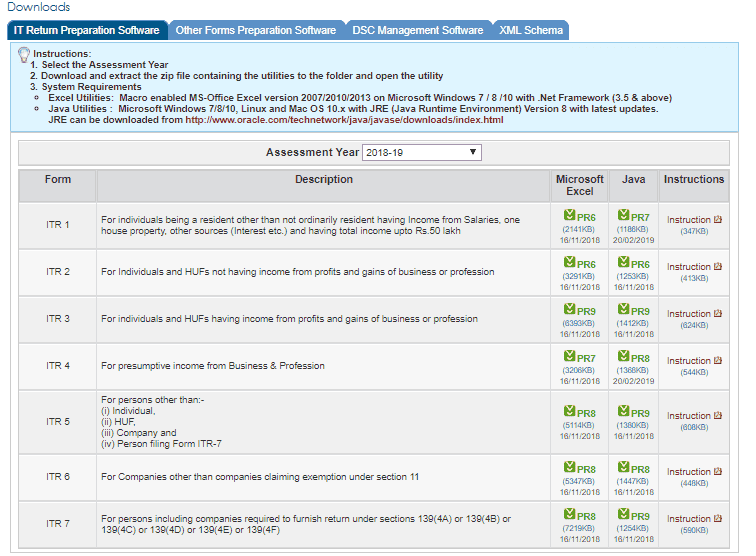 Enter all data and click on 'Calculate' to compute the tax and interest liability and final figure of Refund or Tax payable
If Tax is payable- remember to pay immediately and enter the details in appropriate schedule. Repeat above step so that tax payable becomes zeroGenerate and save the Income Tax Return data in XML format in the desired path/place on your PC/Laptop.
Step 3 : Login to e-Filing website with User ID, Password, Date of Birth /Date of Incorporation and enter the Captcha code.
Step 4 : Go to e-File and click on "Upload Return".
Step 5 : Select the appropriate ITR, Assessment Year and XML file previously saved in Step 2 (using browse button).
Step 6 : Upload Digital Signature Certificate (DSC), if applicable.
Please ensure the DSC is registered with e-Filing.Click on "Submit" button.
Step 7 : On successful submission, ITR-V would be displayed (if DSC is not used). Click on the link and download the ITR-V. ITR-V will also be sent to the registered email. If ITR is uploaded with DSC, the Return Filing process is complete.
OR
The return is not uploaded with DSC, the ITR-V Form should be printed, signed and submitted to CPC within 120 days from the date of e-Filing. The return will be processed only upon receipt of signed ITR-V. Please check your emails/SMS for reminders on .non-receipt of ITR-V.
Upload Income Tax Return process is complete now.
Prepare and Submit ITR Online
To Prepare and Submit ITR Online, please follow the below steps :
Step 1 : Login to e-Filing website with User ID, Password, Date of Birth /Date of Incorporation and Captcha.
Step 2 : Go to e-File and click on "Prepare and Submit ITR Online".
Only ITRs 1 and 4S can be filled online
Step 3 : Select the Income Tax Return Form ITR 1/ITR 4S and the Assessment Year.
Step 4 : Fill in the details and click the "Submit" button.
Step 5 : Upload Digital Signature Certificate (DSC), if applicable.
Please ensure the DSC is registered with e-Filing.
Step 6 : Click on "Submit" button.
Step 7 : On successful submission, ITR-V would be displayed (if DSC is not used). Click on the link and download the ITR-V. ITR-V will also be sent to the registered email. If ITR is uploaded with DSC, the Return Filing process is complete.
OR
The return is not uploaded with DSC, the ITR-V Form should be printed, signed and submitted to CPC within 120 days from the date of e-Filing. The return will be processed only upon receipt of signed ITR-V. Please check your emails/SMS for reminders on .non-receipt of ITR-V.
This ends the process of preparing & submitting ITR Online by Taxpayer.
Enter all data and click on 'Calculate' to compute the tax and interest liability and final figure of Refund or Tax payable
If Tax is payable- remember to pay immediately and enter the details in appropriate schedule. Repeat above step so that tax payable becomes zeroGenerate and save the Income Tax Return data in XML format in the desired path/place on your PC/Laptop.
Step 3 : Login to e-Filing website with User ID, Password, Date of Birth /Date of Incorporation and enter the Captcha code.
Step 4 : Go to e-File and click on "Upload Return".
Step 5 : Select the appropriate ITR, Assessment Year and XML file previously saved in Step 2 (using browse button).
Step 6 : Upload Digital Signature Certificate (DSC), if applicable.
Please ensure the DSC is registered with e-Filing.Click on "Submit" button.
Step 7 : On successful submission, ITR-V would be displayed (if DSC is not used). Click on the link and download the ITR-V. ITR-V will also be sent to the registered email. If ITR is uploaded with DSC, the Return Filing process is complete.
OR
The return is not uploaded with DSC, the ITR-V Form should be printed, signed and submitted to CPC within 120 days from the date of e-Filing. The return will be processed only upon receipt of signed ITR-V. Please check your emails/SMS for reminders on .non-receipt of ITR-V.
Upload Income Tax Return process is complete now.
Prepare and Submit ITR Online
To Prepare and Submit ITR Online, please follow the below steps :
Step 1 : Login to e-Filing website with User ID, Password, Date of Birth /Date of Incorporation and Captcha.
Step 2 : Go to e-File and click on "Prepare and Submit ITR Online".
Only ITRs 1 and 4S can be filled online
Step 3 : Select the Income Tax Return Form ITR 1/ITR 4S and the Assessment Year.
Step 4 : Fill in the details and click the "Submit" button.
Step 5 : Upload Digital Signature Certificate (DSC), if applicable.
Please ensure the DSC is registered with e-Filing.
Step 6 : Click on "Submit" button.
Step 7 : On successful submission, ITR-V would be displayed (if DSC is not used). Click on the link and download the ITR-V. ITR-V will also be sent to the registered email. If ITR is uploaded with DSC, the Return Filing process is complete.
OR
The return is not uploaded with DSC, the ITR-V Form should be printed, signed and submitted to CPC within 120 days from the date of e-Filing. The return will be processed only upon receipt of signed ITR-V. Please check your emails/SMS for reminders on .non-receipt of ITR-V.
This ends the process of preparing & submitting ITR Online by Taxpayer.
Enter all data and click on 'Calculate' to compute the tax and interest liability and final figure of Refund or Tax payable
If Tax is payable- remember to pay immediately and enter the details in appropriate schedule. Repeat above step so that tax payable becomes zeroGenerate and save the Income Tax Return data in XML format in the desired path/place on your PC/Laptop.
Step 3 : Login to e-Filing website with User ID, Password, Date of Birth /Date of Incorporation and enter the Captcha code.
Step 4 : Go to e-File and click on "Upload Return".
Step 5 : Select the appropriate ITR, Assessment Year and XML file previously saved in Step 2 (using browse button).
Step 6 : Upload Digital Signature Certificate (DSC), if applicable.
Please ensure the DSC is registered with e-Filing.Click on "Submit" button.
Step 7 : On successful submission, ITR-V would be displayed (if DSC is not used). Click on the link and download the ITR-V. ITR-V will also be sent to the registered email. If ITR is uploaded with DSC, the Return Filing process is complete.
OR
The return is not uploaded with DSC, the ITR-V Form should be printed, signed and submitted to CPC within 120 days from the date of e-Filing. The return will be processed only upon receipt of signed ITR-V. Please check your emails/SMS for reminders on .non-receipt of ITR-V.
Upload Income Tax Return process is complete now.
Prepare and Submit ITR Online
To Prepare and Submit ITR Online, please follow the below steps :
Step 1 : Login to e-Filing website with User ID, Password, Date of Birth /Date of Incorporation and Captcha.
Step 2 : Go to e-File and click on "Prepare and Submit ITR Online".
Only ITRs 1 and 4S can be filled online
Step 3 : Select the Income Tax Return Form ITR 1/ITR 4S and the Assessment Year.
Step 4 : Fill in the details and click the "Submit" button.
Step 5 : Upload Digital Signature Certificate (DSC), if applicable.
Please ensure the DSC is registered with e-Filing.
Step 6 : Click on "Submit" button.
Step 7 : On successful submission, ITR-V would be displayed (if DSC is not used). Click on the link and download the ITR-V. ITR-V will also be sent to the registered email. If ITR is uploaded with DSC, the Return Filing process is complete.
OR
The return is not uploaded with DSC, the ITR-V Form should be printed, signed and submitted to CPC within 120 days from the date of e-Filing. The return will be processed only upon receipt of signed ITR-V. Please check your emails/SMS for reminders on .non-receipt of ITR-V.
This ends the process of preparing & submitting ITR Online by Taxpayer.About Author


CA Deepak Gupta
Co Founder
CA Deepak Gupta,is Co-founder of Studycafe. He is Microsoft Office Specialist and Corporate Trainer of AI Tools, Microsoft Excel.
He is Finance Influencer having more than 250K followers on Social Media. CA Deepak Gupta, is Having more than 14 plus years of experience, and he has Worked with best brands Like, Hero, Wipro, Ericsson before Starting Studycafe. He has Trained more than 20000 Persons in Microsoft Excel, PowerPoint, Power BI, Google Sheet, Google Forms and Other Tools.
CA Deepak Gupta,is Co-founder of Studycafe. He is Microsoft Office Specialist and Corporate Trainer of AI Tools, Microsoft Excel.
He is Finance Influencer having more than 250K followers on Social Media. CA Deepak Gupta, is Having more than 14 plus years of experience, and he has Worked with best brands Like, Hero, Wipro, Ericsson before Starting Studycafe. He has Trained more than 20000 Persons in Microsoft Excel, PowerPoint, Power BI, Google Sheet, Google Forms and Other Tools.
 StudyCafe
 Delhi, Delhi, India
 3423
3423My Recent Articles
- UltraTech Cement slapped with Rs. 808.78 Cr Income Tax Demand
- GST: High Court upheld constitutional validity of Section 16(2)(c), asks government to address ITC issues of genuine purchasers
- Old vs New Tax Regime for Tax Year 2026-27
- High court criticizes Income Tax Department for not releasing ITR Utilities despite 11 years of directions
- Fino Payments Bank CEO Rishi Gupta Gets Bail in GST Case, Bank Clarifies No Direct Link
Up Next
Loading suggestions…


Recent Posts


All Posts



Recent Posts
All Posts