GST Rate Change: How To Update GST Rates In Tally For Accurate Billing:
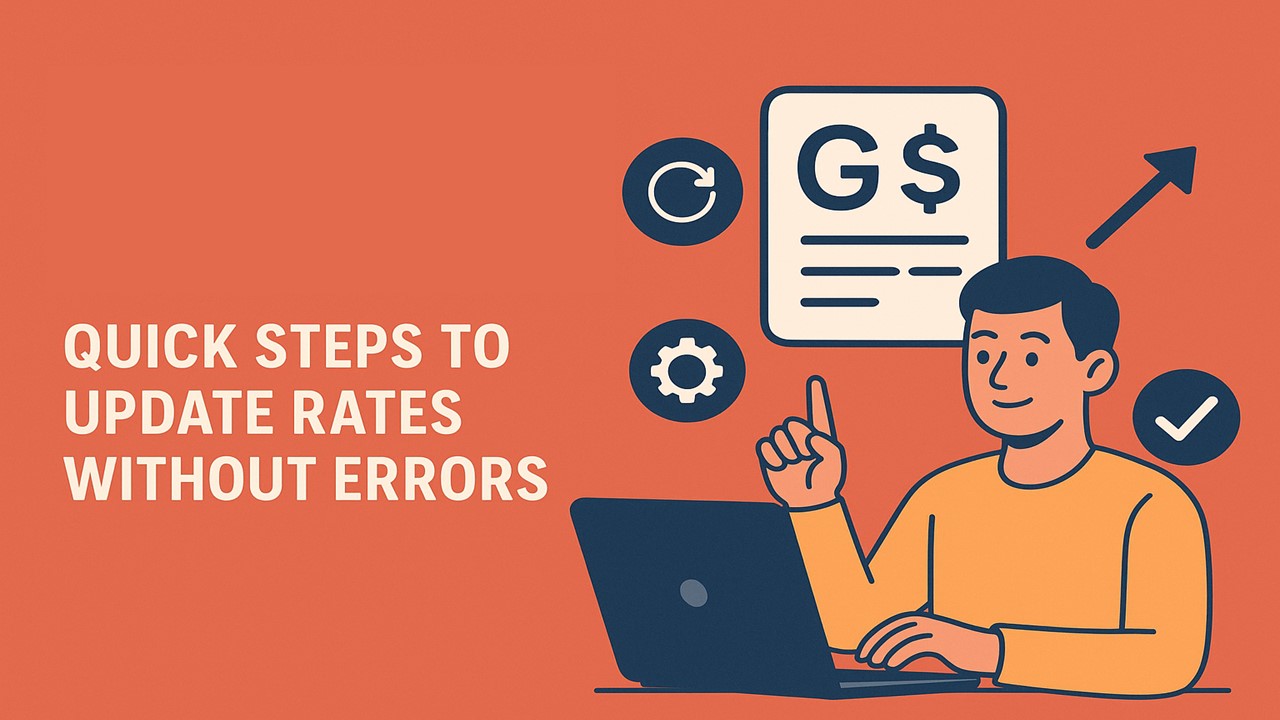
Avoid audit issues and penalties by updating GST rates in Tally. Follow these simple steps to stay compliant and maintain accurate invoices.
Why Updating GST Rates in Tally is Important
 Vanshika verma
 Sep 22, 2025
GST Rate Change: How To Update GST Rates In Tally For Accurate Billing
GST rates often change, and keeping them updated in Tally is important for compliance and error-free invoicing. Here's how to apply GST Rate updates in Tally and why it is important for many reasons:
- Error-Free Billing: Correct GST rates Make sure invoices are accurate for both e-invoicing and billing. Wrong or inaccurate rates can cause errors and problems while auditing.
- Compliance with New Regulation: India has updated its GST system, such as tax rate slabs. Therefore, businesses must add new rates in their system to comply with tax regulations and to avoid penalties.
- Avoiding Penalties and Consequences: Incorrect GST rates may attract penalties, interest charges, and other legal consequences such as fraud or significant discrepancies. Keeping correct rates reduces risk of penalties and consequences.
- Faster Return Filing: Keeping GST rates updated will help in faster return filing as it will help Tally to make correct reports which will eventually help in faster and accurate result.
- Smooth Input Tax Credit (ITC) Handling: Keeping updated GST rates in system results in correct calculation of ITC. However, conflicting results can lead to incorrect ITC claims.
About Author


Vanshika verma
Content Writer
Vanshika Verma is a Content Writer with 1+ year of experience at Studycafe.in. A B.Com graduate from Delhi University, She writes articles on Finance, Tax, ICAI, GST, and the latest financial news, with a focus on making complex topics easy for readers and professionals.
Vanshika Verma is a Content Writer with 1+ year of experience at Studycafe.in. A B.Com graduate from Delhi University, She writes articles on Finance, Tax, ICAI, GST, and the latest financial news, with a focus on making complex topics easy for readers and professionals.
 Studycafe
 Delhi, Delhi, India
 2096
2096My Recent Articles
- Pinarayi Vijayan Moves Supreme Court Challenging Kerala High Court Order to Register FIR in CMRL Alleged Bribery Case
- CBI Lays Trap in Srinagar, Arrests SMC Ward Officer Red-Handed While Allegedly Accepting Rs 10,000 Bribe
- NIIT Limited Discloses Income Tax Department’s Appeal Before Delhi ITAT, Says No Adverse Financial Impact Expected
- Fake WhatsApp Boss Dupes Company Accountant of Rs 40 Lakh; Surat Police Arrest Haryana Man in Cyber Fraud Case
- Uttarakhand Tax Department Detects Rs 2.5 Crore Tax Evasion at Ramnagar Resort
Up Next
Loading suggestions…


Recent Posts

All Posts


Recent Posts
All Posts